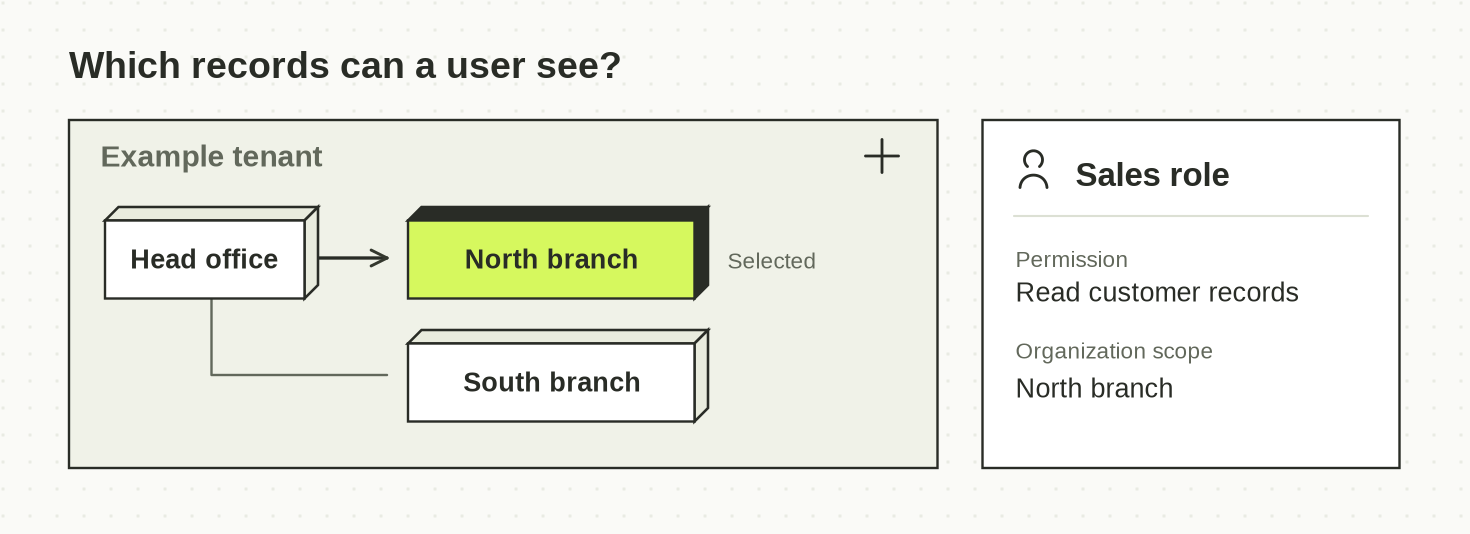
A dispatcher for the North branch can look up the day's visits. A supervisor can also reassign them. Both may work for the same tenant, and neither should see records from an unrelated tenant. Use an organization boundary for the records and feature permissions for the actions.
What the three checks answer
Tenant. Which customer account owns this data? Carry the authenticated tenant into the database query.
Organization. Which branch or business unit is in scope? A tenant can contain an organization tree. A user's allowed organizations and the current selection determine where they can work.
Feature. What can the caller do there? Give the dispatcher service_visits.view, a feature defined by your module. Create a separate management feature if supervisors need broader access.
A feature permission answers what a person can do. Organization scope determines which branch of the tenant they can work in.
Grant and test a role
Sign in as an administrator with role-management access. In Settings, open Roles. Choose the role used by the test dispatcher and grant the view feature. Save the role.
Open the dispatcher's user record. Check the role assignment and the organizations they can access. User-level overrides can change their effective permissions, so inspect those when two users with the same role see different results.
Sign in as that dispatcher and select North in the organization picker. Open a visit owned by North. Then try the management operation with the same account. The read should succeed and the write should be denied.
Test with a second organization and a separate, unprivileged account. Check the detail API as well as the list. A missing menu item alone cannot establish that a record is protected.
Apply the check where the data moves
Declare the feature in your module's acl.ts. Attach requireAuth and requireFeatures to page or route metadata as appropriate. Use the effective request scope when querying the record, including on a lookup by ID. A background job needs the tenant and organization explicitly because it runs outside the original session.
 DocsTopicsSearch docsAPI reference