 DocsTopicsSearch docsAPI referenceDocsTopicsSearch docsAPI reference
User guide
Define a default value for everyone and add overrides for selected tenants. Test the feature in the target tenant after making a change.
Feature toggles (also known as feature flags) allow you to decouple feature deployment from code deployment. You can release code to production but keep the feature hidden or structurally disabled until you are ready to turn it on for specific tenants, or globally.
The system now supports multiple types of feature toggles, allowing for dynamic runtime configuration beyond simple on/off switches:
Required Role: Super Admin
Global feature toggles are the default state for a feature across the entire system.
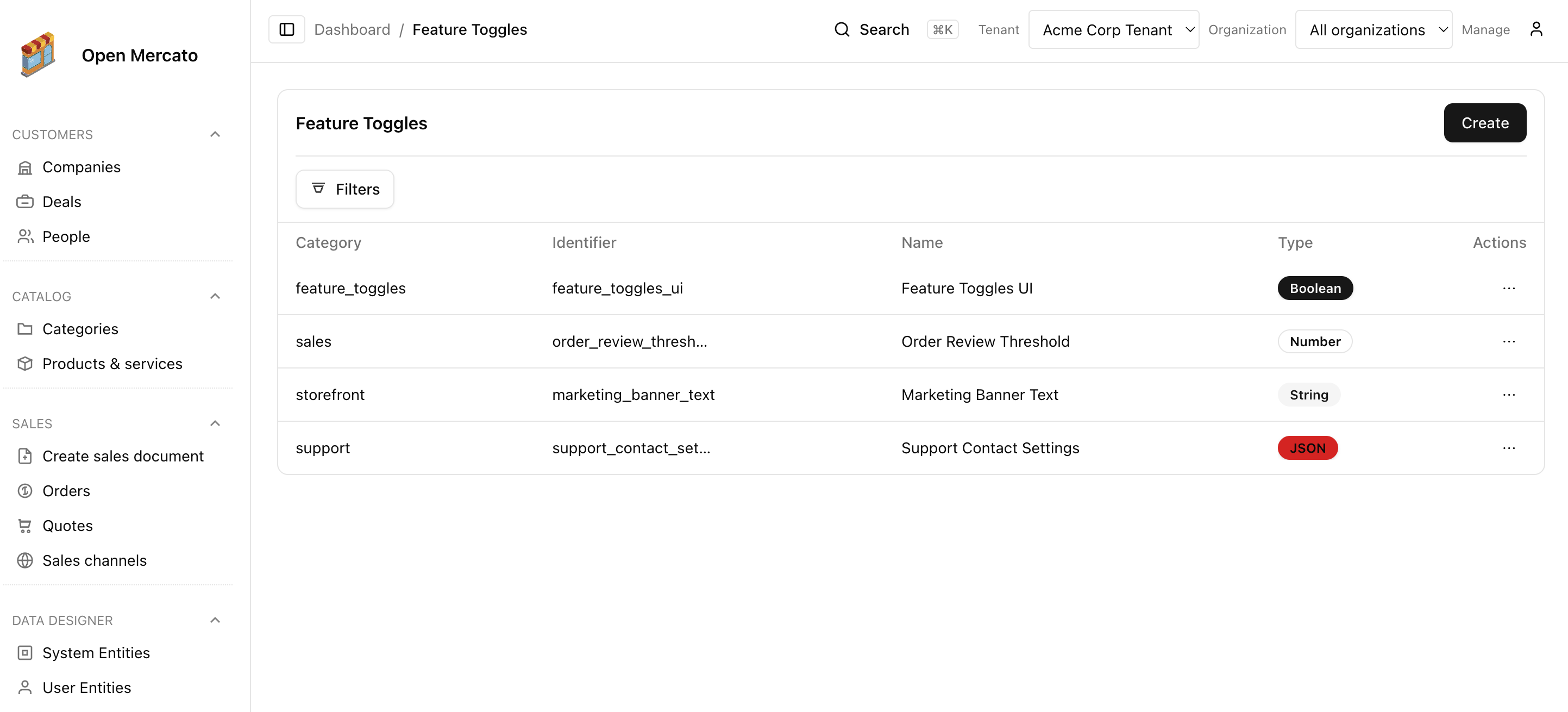
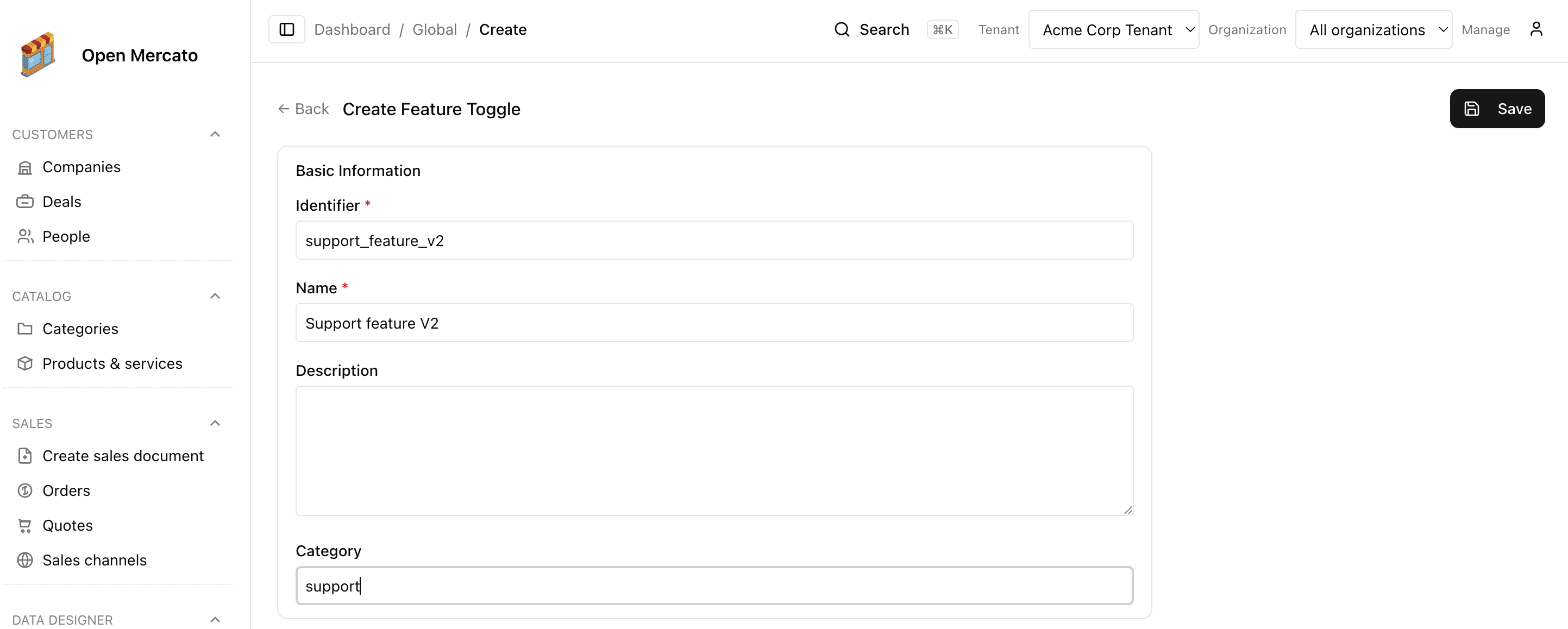
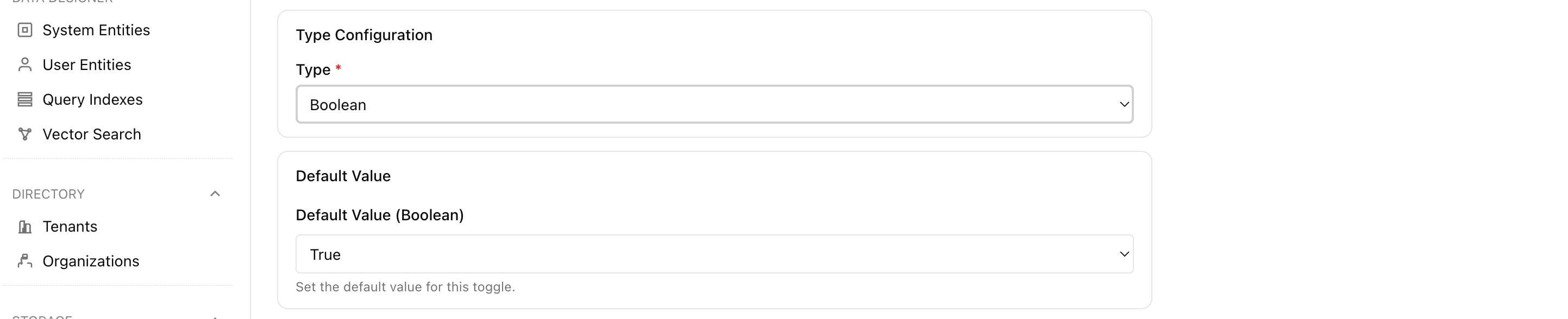
checkout_new_flow).For Boolean type: Choose true or false
For String type: Enter any text value
For Number type: Enter a numeric value (e.g., 10)
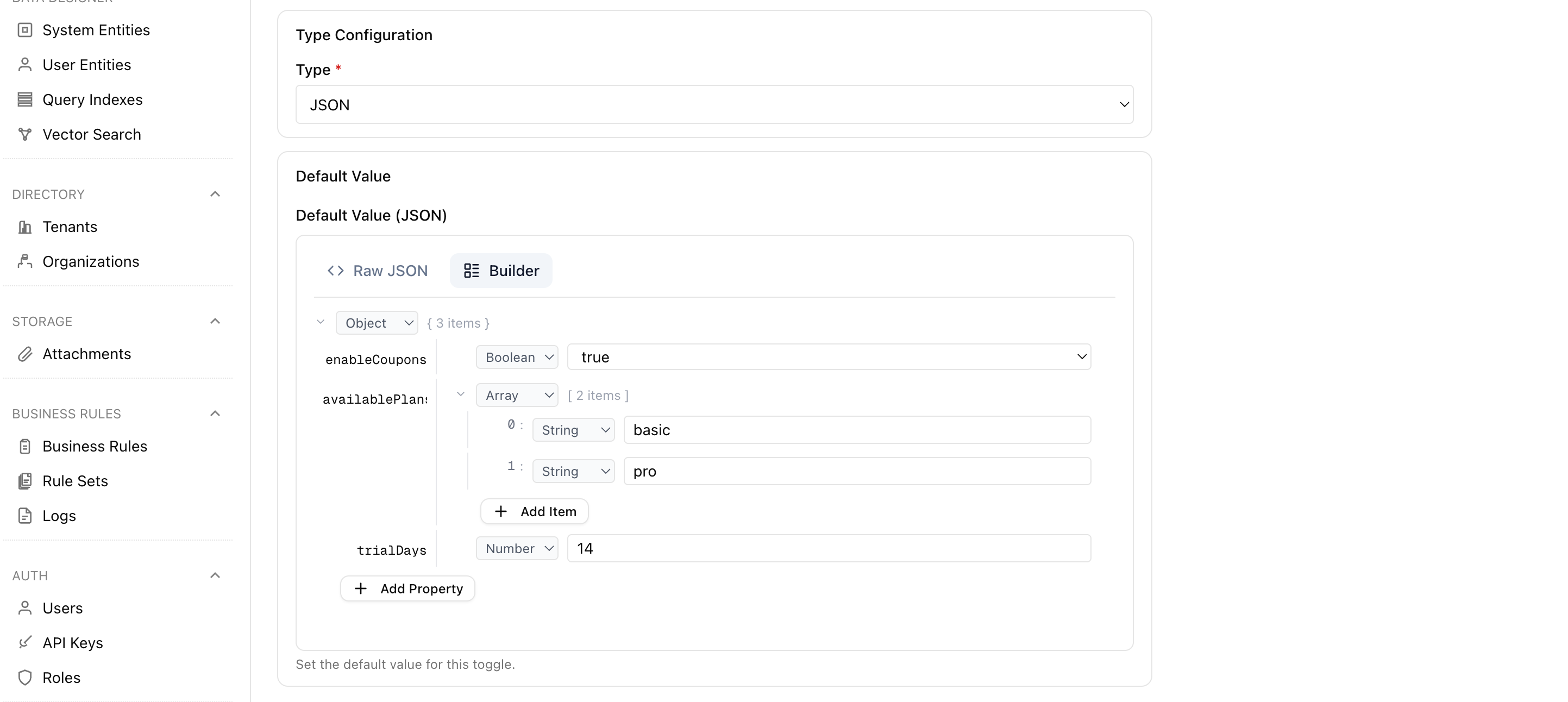
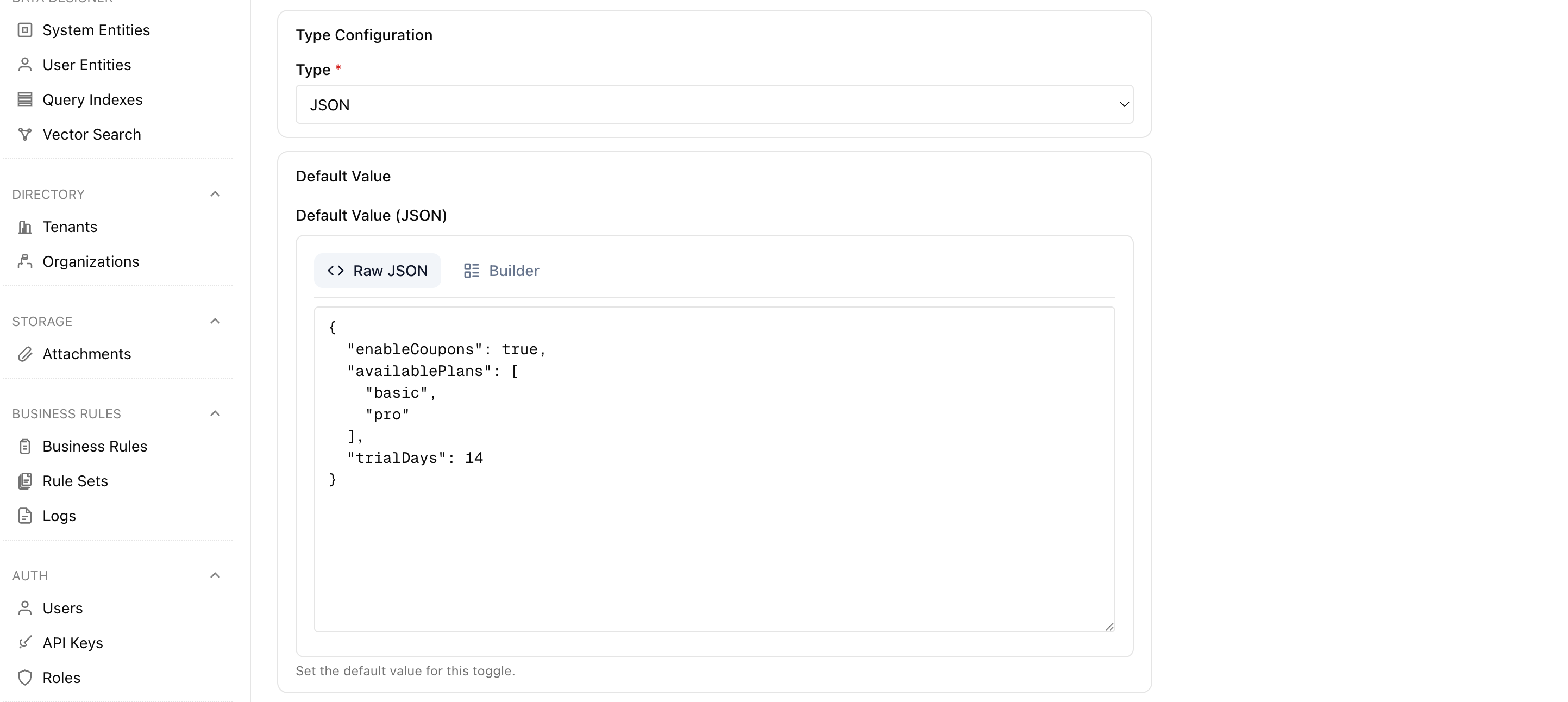
For JSON type: Use the built-in JSON builder with two tabs:
Builder (visual editor):
RAW (text editor):
For other types, use the simple input field:
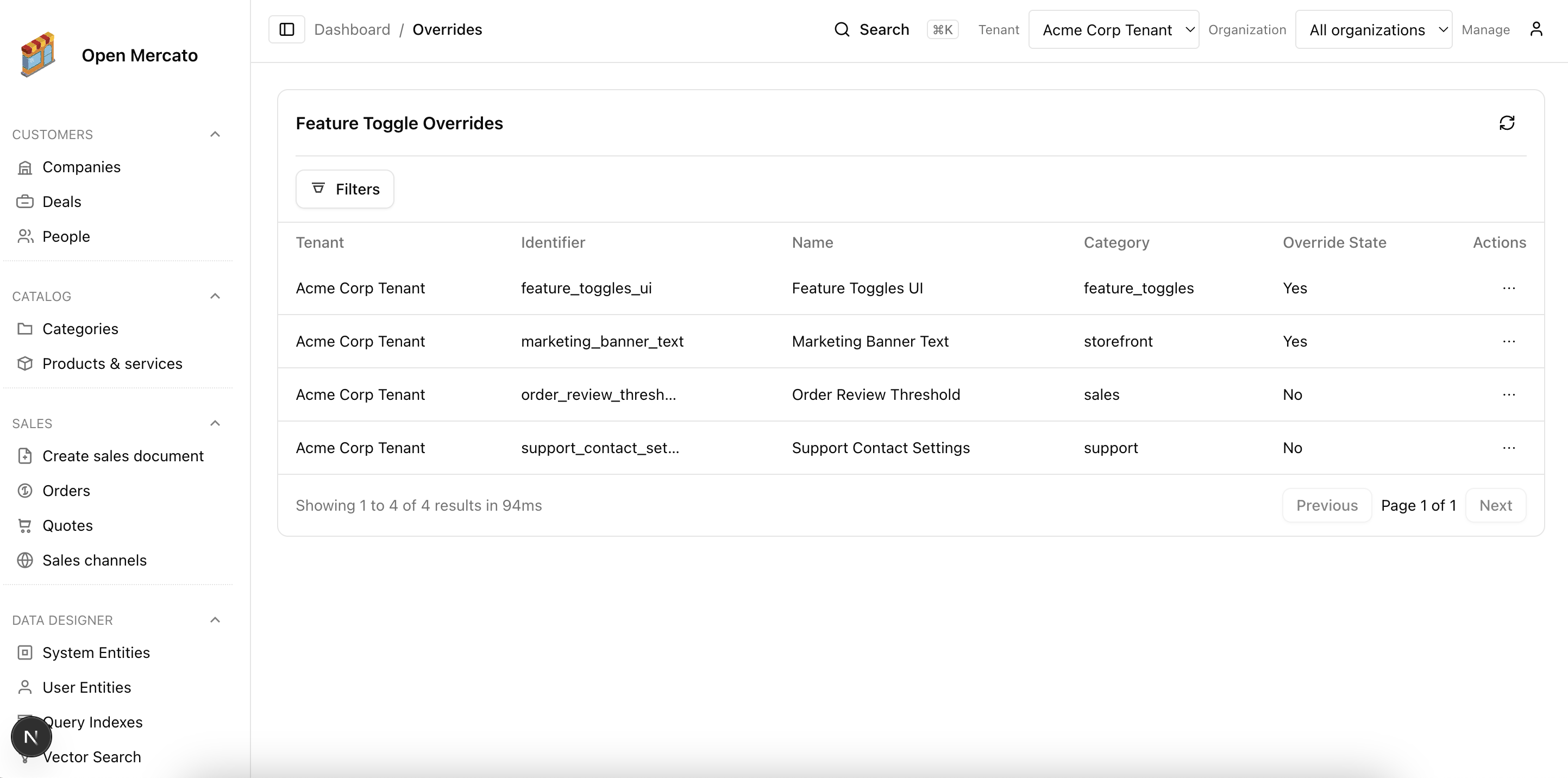
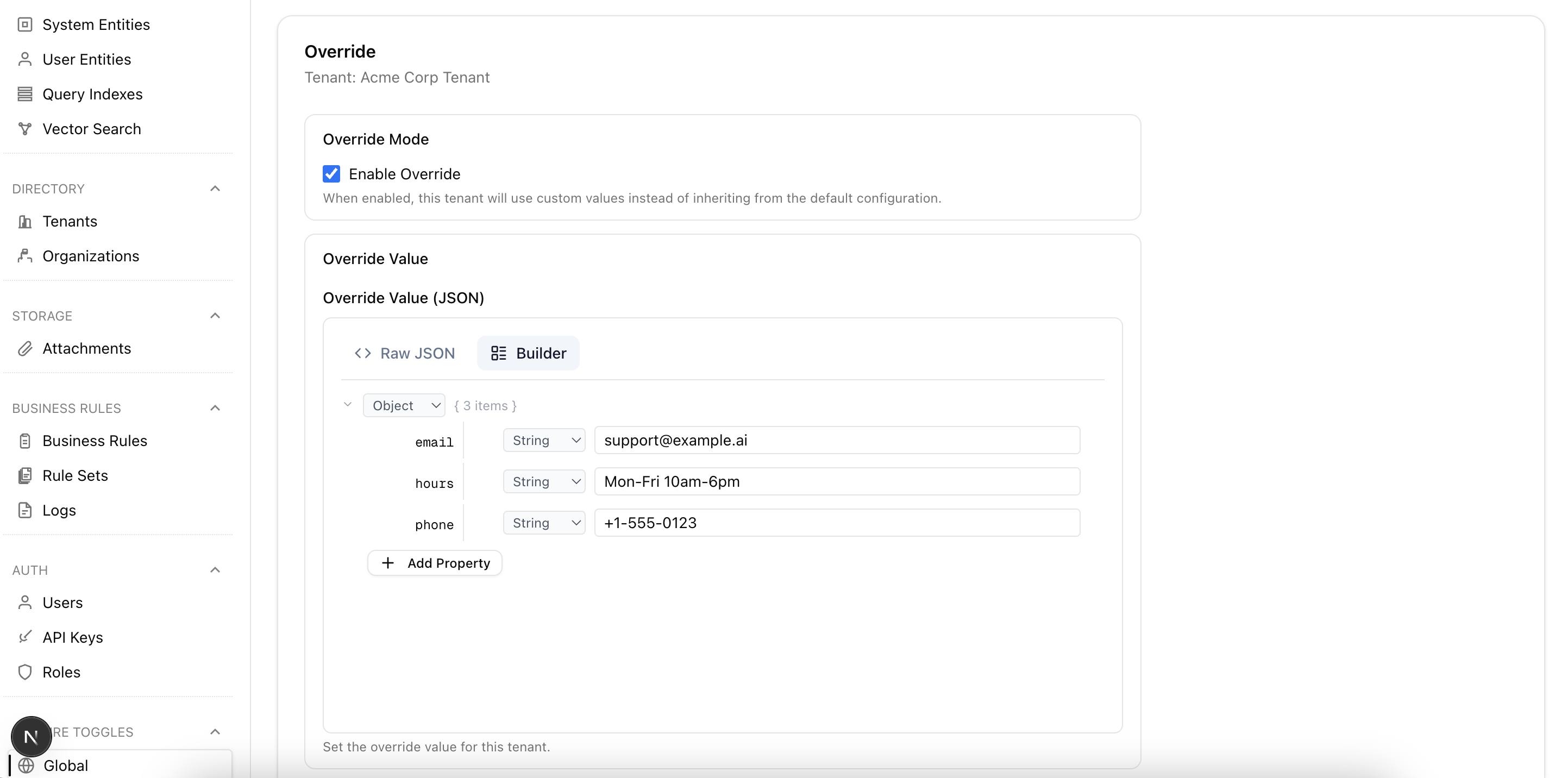
You can override the global value of a feature toggle for specific tenants. This allows for gradual rollouts, beta testing with specific customers, or tenant-specific configuration.

Once a toggle is created, you can use it in your backend or frontend code to conditionally execute logic or render components.
Use the FeatureFlag component (or FeatureGuard) to conditionally render UI elements. Note that FeatureGuard determines visibility based on Boolean toggles (truthy check).
import { FeatureFlag } from "@open-mercato/core";

export const MyComponent = () => {
  return (
    <div>
      <h1>Welcome</h1>
      <FeatureFlag name="payment_new_flow">
        <NewFeatureComponent />
      </FeatureFlag>
    </div>
  );
};
Use typed hooks for accessing toggle values in your components.
Boolean Toggle:
import { useFeatureFlagBoolean } from "@open-mercato/core";

export const MyComponent = () => {
  const { enabled, isLoading } = useFeatureFlagBoolean({ id: "payment_new_flow" });

  if (isLoading) return <Loading />;
  if (enabled) return <NewFeatureComponent />;
  return <OldComponent />;
};
String Toggle:
import { useFeatureFlagString } from "@open-mercato/core";

export const BrandingComponent = () => {
  const { value } = useFeatureFlagString({ id: "brand_header_color" });
  return <div style={{ color: value }}>Header</div>;
};
Number Toggle:
import { useFeatureFlagNumber } from "@open-mercato/core";

export const ListComponent = () => {
  const { value } = useFeatureFlagNumber({ id: "items_per_page" });
  // use value (number) for pagination
};
JSON Toggle:
import { useFeatureFlagJson } from "@open-mercato/core";

export const ConfigComponent = () => {
  const { value } = useFeatureFlagJson<{ showSidebar: boolean }>({ id: "ui_config" });
  // value is typed as { showSidebar: boolean } or null/unknown
};
Use the FeatureTogglesService to retrieve configuration values.
Boolean Toggle:
import { FeatureTogglesService } from "@open-mercato/core";

export class CheckoutService {
  constructor(private readonly featureToggles: FeatureTogglesService) {}

  async processCheckout(tenantId: string) {
    const isEnabledResult = await this.featureToggles.getBoolConfig("enable_new_checkout_flow", tenantId);
    if (isEnabledResult.ok && isEnabledResult.value) {
      // execute new checkout flow logic
    }
  }
}
String Toggle:
// Inside your service method
async getTheme(tenantId: string) {
  const themeResult = await this.featureToggles.getStringConfig("checkout_theme_mode", tenantId);
  const theme = themeResult.ok ? themeResult.value : "light";
}
Number Toggle:
// Inside your service method
async getCartLimit(tenantId: string) {
  const limitResult = await this.featureToggles.getNumberConfig("max_cart_items", tenantId);
  const limit = limitResult.ok ? limitResult.value : 10;
}
JSON Toggle:
// Inside your service method
interface PaymentProviderConfig {
  provider: string;
  retries: number;
}

async getPaymentConfig(tenantId: string) {
  const configResult = await this.featureToggles.getJsonConfig<PaymentProviderConfig>("payment_provider_settings", tenantId);
  if (configResult.ok) {
     const settings = configResult.value;
  }
}
When retrieving toggle values manually (e.g., via Service or API), the result uses a Result<T> pattern.
type Result<T> =
  | { ok: true; value: T; resolution: ResolutionMetadata }
  | { ok: false; error: ToggleError; resolution: ResolutionMetadata };
Common error codes:
MISSING_TOGGLE: The requested identifier does not exist.TYPE_MISMATCH: The toggle exists but is not of the requested type (e.g., requested String but toggle is Boolean).INVALID_VALUE: The resolved value is not valid for the requested type (e.g. null for a non-nullable type or wrong primitive type).You can manage feature toggles via the CLI for CI/CD pipelines or scripted setups.
You can seed default feature toggles from a file (e.g., for initializing a new environment).
yarn mercato feature-toggles seed-defaults --path ./toggles.json
You can script the application of overrides for specific tenants.
yarn mercato feature-toggles override-set-value \
  --identifier "checkout_new_flow" \
  --value true \
  --tenantId <tenant-id>
For a full list of commands, see the CLI Feature Toggles section.