User guide
Shipments
Create a shipment from the sales document and identify the items it contains. Check quantities against the order when only part of the order ships.
Shipments track fulfillment against orders. Each shipment can apply shipping costs, set tracking, and update item statuses. Access requires sales.shipments.manage plus order manage rights.
Create a shipment
There are two common entry points:
- Manual shipment entry
Open the Shipments tab on an order and click Add shipment.
- Carrier-driven shipment creation
If a shipping carrier integration is installed, open Sales → Orders, open the row actions for a specific order, and use Create shipment.
The carrier-driven flow is order-based. It does not require a shipping method to be selected on the order first, but it does require:
- an existing order
- at least one configured carrier integration
- shipping-carrier management access
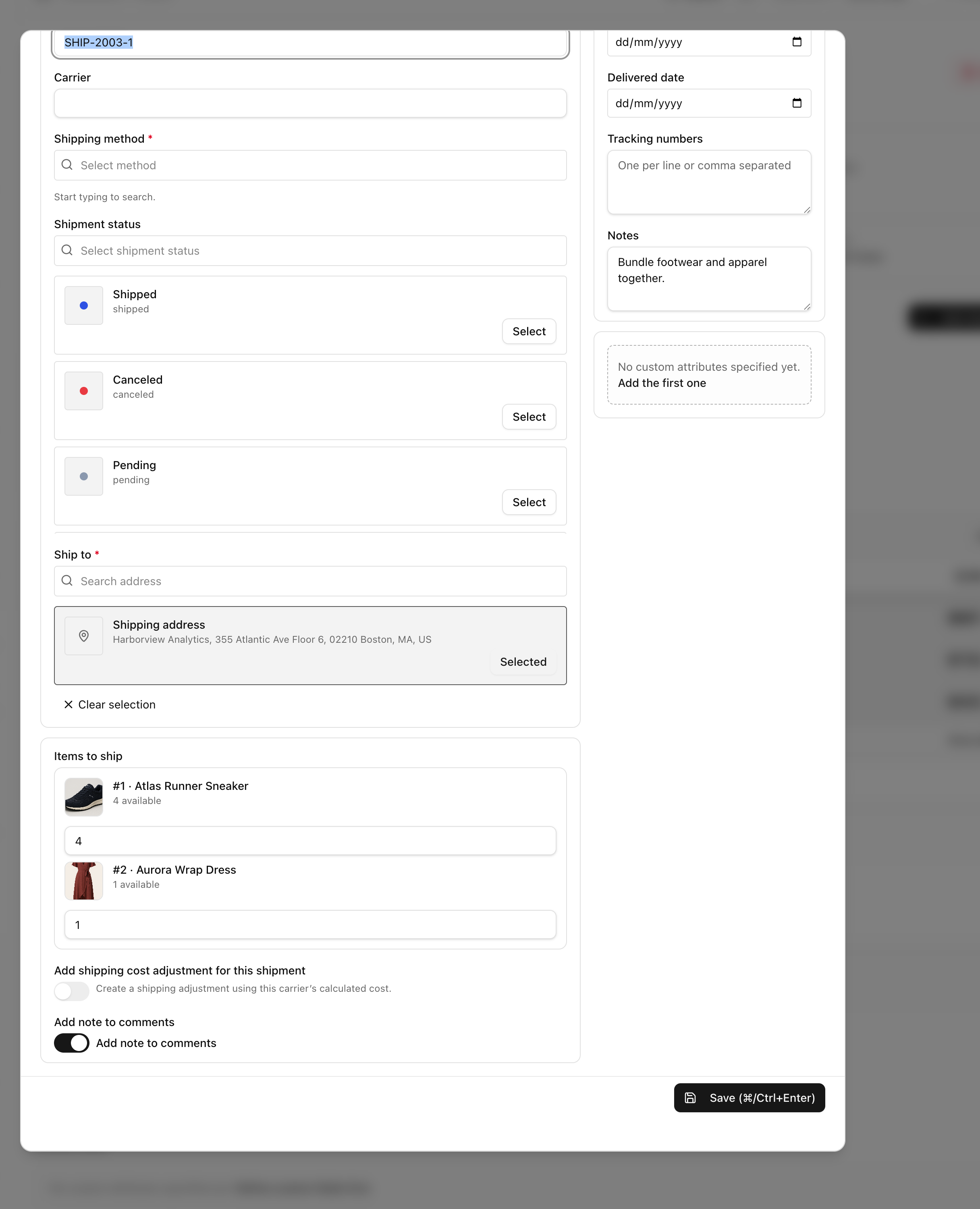
When filling the shipment form:
- Set shipping method when you want the shipment recorded against one of your Sales settings methods.
- Set shipment status (dictionary-driven).
- Pick a ship to address or add a new one.
- Select items to ship and quantities.
- Optionally add a shipping cost adjustment so totals include carrier charges.
- Add notes and tracking numbers.
- Save with
Cmd/Ctrl + Enter; Escape cancels.
How shipments interact with items
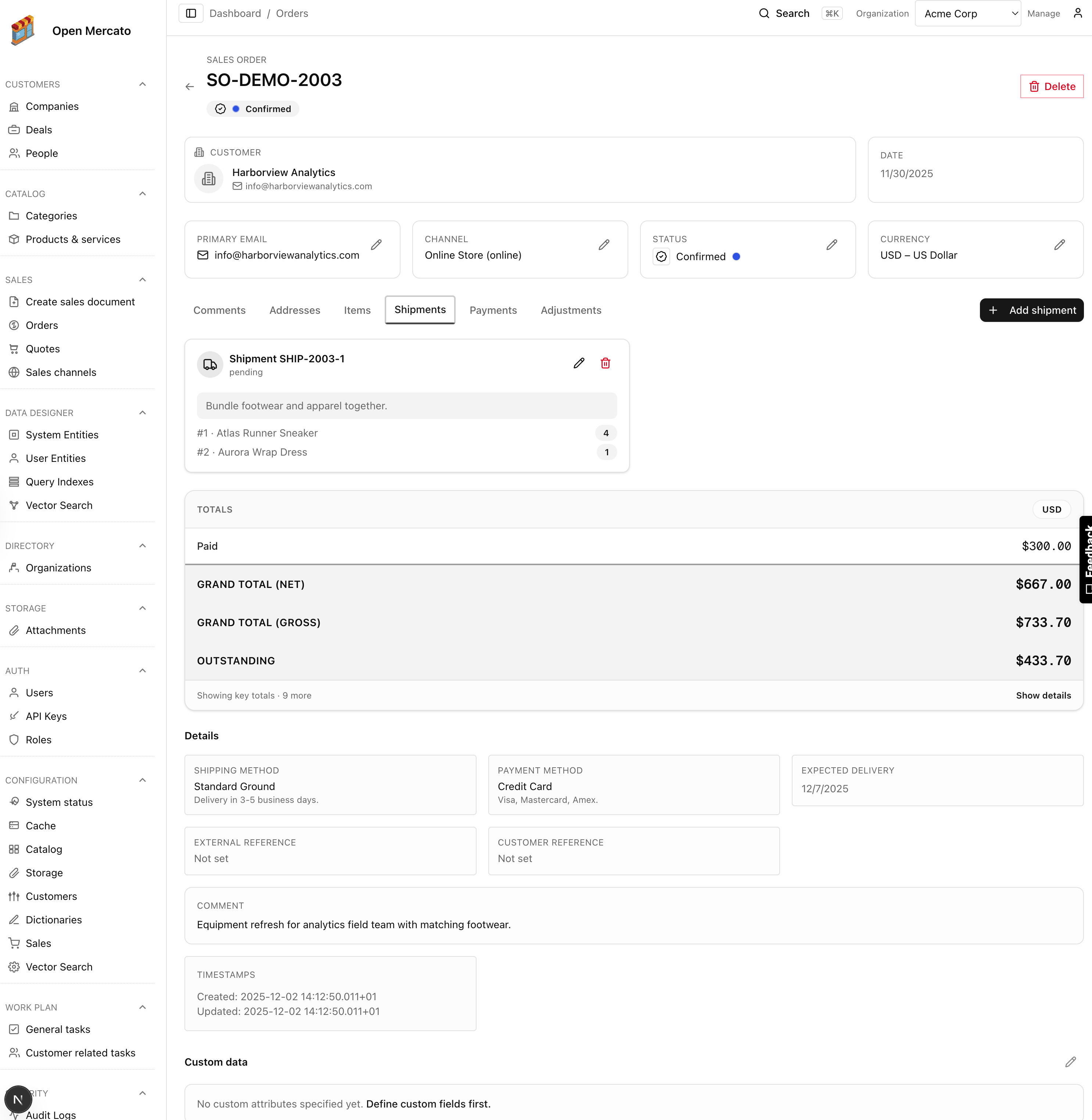
- Item-level statuses move when quantities ship; statuses come from the Order line statuses dictionary.
- Multiple shipments can fulfill one order; remaining quantities stay pending.
- Shipping adjustments post to the Adjustments tab and recalc totals.
Tips
- Keep shipment statuses tidy (pending, packed, shipped, delivered, returned) to mirror warehouse workflows.
- Use notes for packing instructions; tracking supports multiple numbers (comma-separated).
- Add shipping cost adjustments per shipment to keep margins accurate.
- The standalone shipment wizard page is not meant to be opened from the sidebar directly. The supported carrier flow starts from a concrete order in Sales → Orders.
 DocsTopicsSearch docsAPI reference