User guide
Scheduled Jobs
Create a schedule for work that should recur without someone starting it manually. Inspect its next planned execution and run history after saving.
Schedules can execute commands or enqueue work at a specified time or interval.
Overview
The scheduler provides:
- Cron-based scheduling - Use standard cron expressions for complex timing patterns
- Interval scheduling - Use simple interval formats like "15m", "2h", or "1d"
- Multi-tenant isolation - Schedule jobs at system, organization, or tenant scope
- Timezone support - Run jobs in any timezone
- Command or queue execution - Target registered commands or worker queues
- Execution history - Track job runs and troubleshoot failures (in async mode)
- Manual triggers - Run scheduled jobs on-demand
Accessing Scheduled Jobs
Navigate to Configuration → Scheduled Jobs in the admin panel.
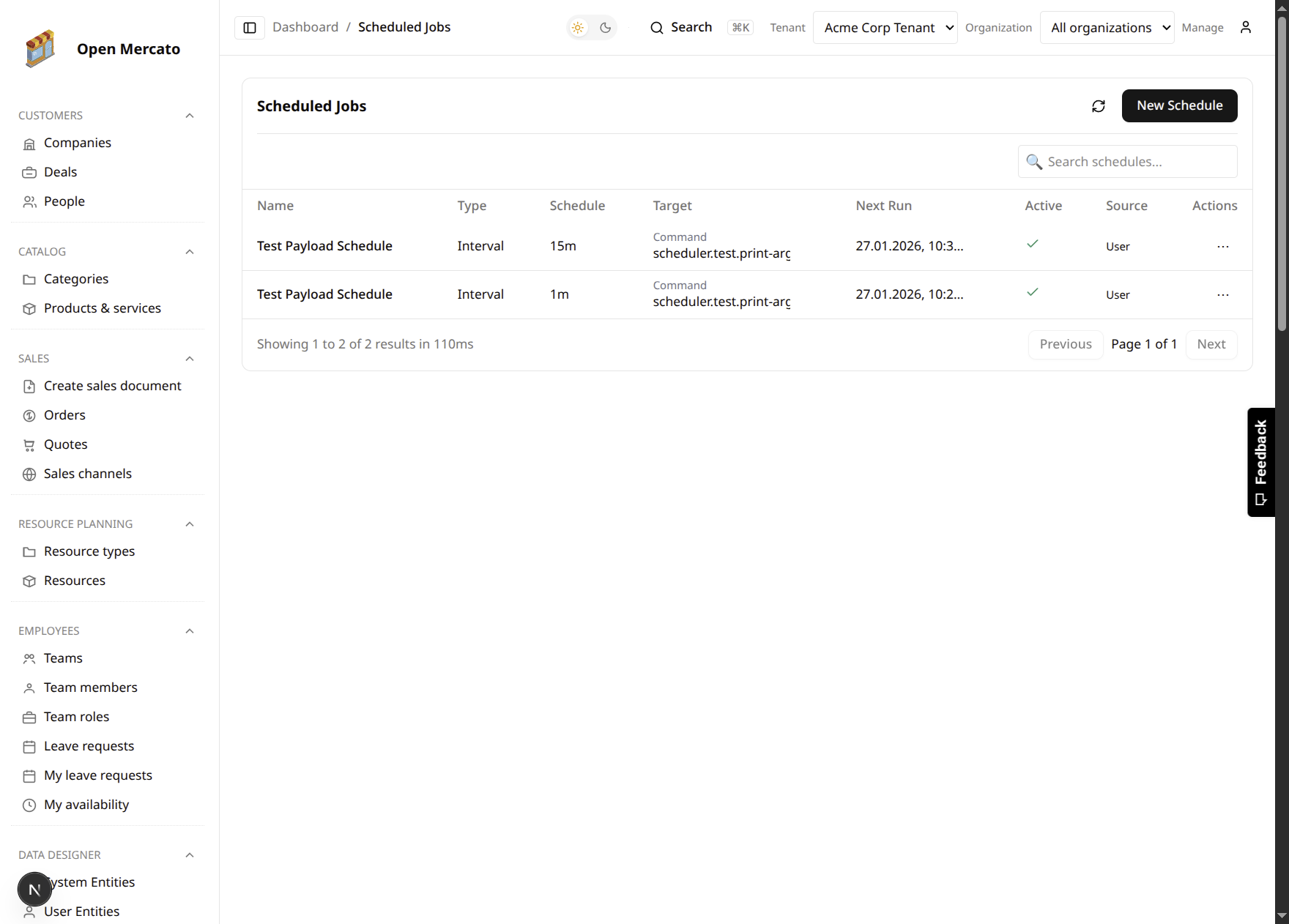
The list shows all configured schedules with:
- Name - Human-readable job name
- Type - Cron or Interval
- Schedule - The cron expression or interval value
- Target - Whether it executes a Command or Queue job
- Next Run - When the job will execute next
- Active - Whether the schedule is enabled
- Source - Whether created by a user or module
Creating a Schedule
Click New Schedule to create a new scheduled job.
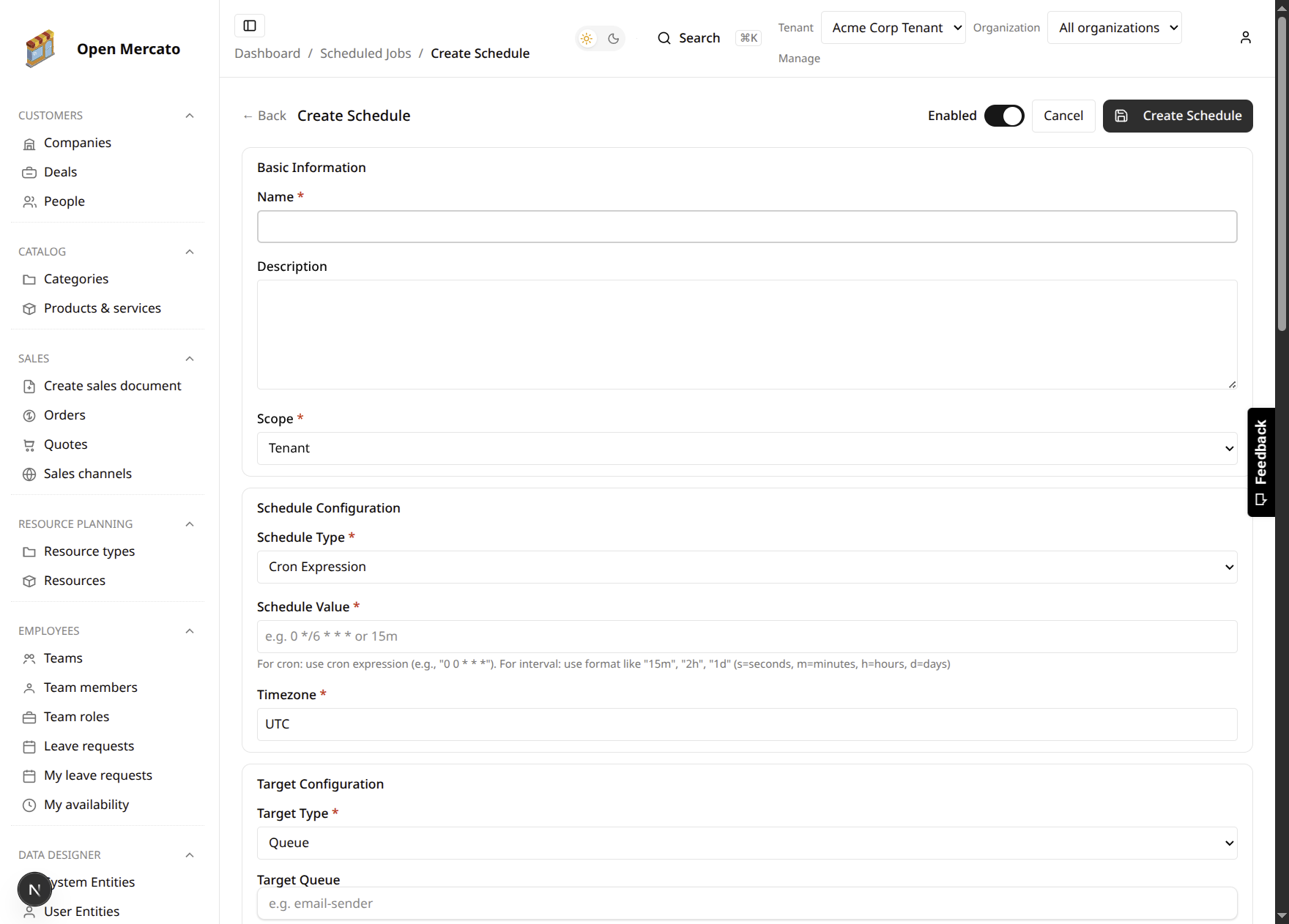
- Name (required) - A descriptive name for the schedule
- Description (optional) - Additional details about what the job does
- Scope (required) - Choose the isolation level:
- System - Runs globally, not tied to any tenant/organization
- Organization - Runs for a specific organization
- Tenant - Runs for a specific tenant (default)
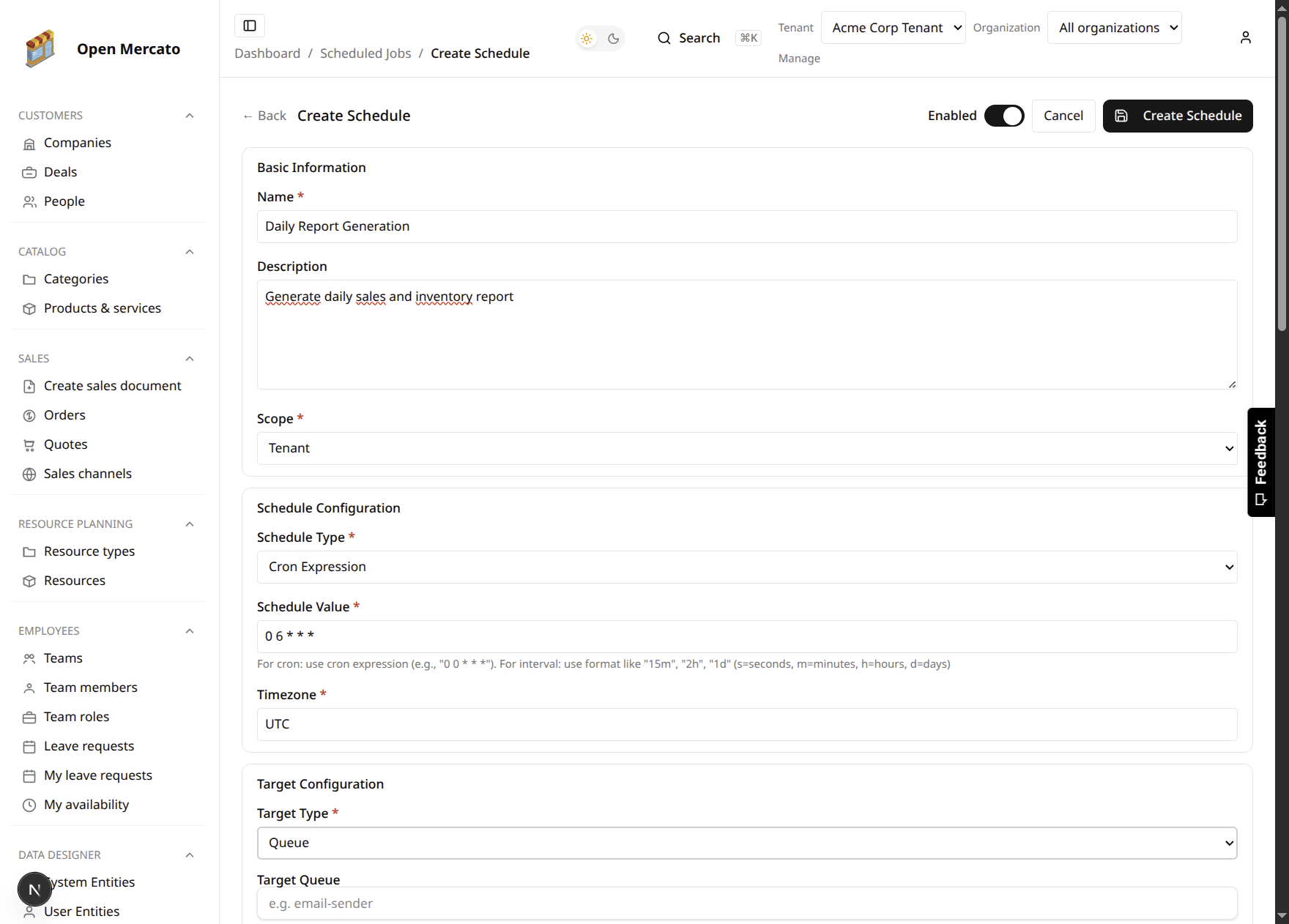
Schedule Configuration
-
Schedule Type (required) - Choose how to define the schedule:
- Cron Expression - Use standard 5-field cron syntax
- Simple Interval - Use interval format (e.g., "15m", "2h", "1d")
-
Schedule Value (required) - The actual schedule:
- Cron examples:
0 0 * * * - Every day at midnight0 */6 * * * - Every 6 hours*/15 * * * * - Every 15 minutes0 9 * * 1-5 - Weekdays at 9 AM
- Interval examples:
30s - Every 30 seconds15m - Every 15 minutes2h - Every 2 hours1d - Every day
-
Timezone (required) - The timezone for schedule execution (default: UTC)
Target Configuration
-
Target Type (required) - What to execute:
- Queue - Add a job to a worker queue
- Command - Execute a registered command
-
Target Queue (for queue type) - The queue name to enqueue to
-
Target Command (for command type) - Select from registered commands
-
Job Arguments (JSON) (optional) - JSON payload passed to the target
- Must be valid JSON format
- Example:
{"message": "Hello", "value": 42}
Enable/Disable
Toggle the Enabled switch to activate or deactivate the schedule without deleting it.
Schedule Actions
From the list view, each schedule has an actions menu:
- View - See schedule details and execution history
- Edit - Modify the schedule configuration
- Run Now - Manually trigger the schedule (requires async mode)
- Delete - Remove the schedule (soft delete, can be undone)
Execution Strategies
The scheduler supports two execution strategies:
Local Strategy (Development)
Environment: QUEUE_STRATEGY=local (default)
- Polls the database every 30 seconds for due schedules
- Prevents duplicate execution within the process only – run exactly one scheduler process, or a second one will execute the same due schedule
- No Redis required
- Best for development and single-instance deployments
Start the scheduler:
yarn mercato scheduler start
Keep this process running in a terminal.
Async Strategy (Production)
Environment: QUEUE_STRATEGY=async
- Uses BullMQ repeatable jobs for precise timing
- Requires Redis
- Supports distributed multi-instance deployments
- Provides execution history and job details
Setup:
- Sync schedules with BullMQ (one-time):
yarn mercato scheduler start
- Start workers in separate processes:
yarn mercato queue worker --all
CLI Commands
The scheduler module provides several CLI commands:
# List all schedules
yarn mercato scheduler list [--tenant <id>] [--scope <type>] [--enabled <true|false>]

# Show scheduler status
yarn mercato scheduler status

# Manually run a schedule
yarn mercato scheduler run <schedule-id>

# Start scheduler engine
yarn mercato scheduler start
Common Use Cases
Daily Reports
Schedule a report generation job to run every morning:
- Schedule Type: Cron
- Schedule Value:
0 6 * * * (6 AM daily)
- Target: Queue or Command for report generation
Data Synchronization
Sync data with external services every 15 minutes:
- Schedule Type: Interval
- Schedule Value:
15m
- Target: Command for data sync
Cleanup Tasks
Remove old records weekly:
- Schedule Type: Cron
- Schedule Value:
0 2 * * 0 (2 AM every Sunday)
- Target: Command for cleanup
Currency Rate Updates
Fetch exchange rates every 6 hours:
- Schedule Type: Cron
- Schedule Value:
0 */6 * * *
- Target: Queue job for rate fetching
Access Control
The scheduler module uses these features for access control:
scheduler.jobs.view - View scheduled jobsscheduler.jobs.manage - Create, edit, and delete schedulesscheduler.jobs.trigger - Manually trigger schedule execution
Users need the appropriate features assigned to their role to access scheduler functionality.
Best Practices
- Use descriptive names - Make it clear what each schedule does
- Set appropriate scopes - Use System scope only when truly global
- Test with intervals first - Use simple intervals during development, switch to cron for production
- Monitor execution history - Regularly check job runs for failures (async mode)
- Use timezone awareness - Always specify the correct timezone for business logic
- Validate JSON payloads - Ensure Job Arguments are valid JSON before saving
- Start with disabled schedules - Create new schedules in disabled state, test manually, then enable
- Document your schedules - Use the Description field to explain the purpose and impact
Troubleshooting
Schedule Not Running
- Check if the schedule is Enabled
- Verify the Next Run time is in the future
- Ensure the scheduler process is running (
yarn mercato scheduler start)
- For async mode, verify workers are running and Redis is accessible
Invalid Cron Expression
- Use a cron validator tool to test your expression
- Remember: 5-field format (minute, hour, day, month, weekday)
- Common mistake: Using 6-field format (with seconds) - not supported
Command Not Found
- Ensure the command is registered in the command registry
- Check if the command exists in your modules
- Verify the command ID matches exactly
Queue Job Not Processing
- Verify the queue name is correct
- Ensure workers are listening to the target queue
- Check worker logs for errors
- Verify the JSON payload is valid
Technical Details
Database Table
Schedules are stored in the scheduled_jobs table with:
- UUID primary key
- Multi-tenant fields (tenant_id, organization_id)
- Schedule configuration (type, value, timezone)
- Target configuration (type, queue/command, payload)
- Execution tracking (last_run_at, next_run_at)
- Source tracking (user vs module created)
Events
The scheduler emits events for monitoring:
scheduler.job.started - Job execution startedscheduler.job.completed - Job completed successfullyscheduler.job.failed - Job execution failedscheduler.job.skipped - Job was skipped (disabled or feature flag)
Feature Flags
Schedules can optionally require a feature flag:
- Set
require_feature field to enforce access control
- Jobs are skipped if the user/tenant lacks the feature
- Useful for premium features or beta functionality
 DocsTopicsSearch docsAPI reference