 DocsTopicsSearch docsAPI referenceDocsTopicsSearch docsAPI reference
User guide
Pick a step according to what the process needs next. Starting a run, performing an activity, waiting for a person and finishing the process use different step types.
| Step Type | Purpose | Execution | When to Use |
|---|---|---|---|
| START | Entry point | Auto-advances immediately | Beginning of every workflow |
| END | Exit point | Completes the workflow | End of every workflow path |
| USER_TASK | Human decision/input | Waits for user action | Approvals, reviews, manual data entry |
| AUTOMATED | Automated processing | Executes activities, then advances | API calls, calculations, data updates |
| WAIT_FOR_SIGNAL | External trigger | Waits for signal from outside | Payment confirmations, webhook callbacks |
| WAIT_FOR_CONDITION | Wait on the run's own data | Waits until a condition over the context holds | "Wait until the grid approval lands", "wait until the balance is paid" |
| IF_ELSE | Two-way decision | Advances immediately, routes on conditions | Yes/no gates: qualified, approved, in budget |
| SWITCH | Multi-way decision | Advances immediately, routes on one field's value | Routing on a status, a plan tier, a financing choice |
| SUB_WORKFLOW | Call another workflow | Executes child workflow | Reusable processes, modular workflows |
Tip · Changing your mind
A step's type is not permanent. The step inspector's Change type… control converts a step in place, keeping its id, name, position and wiring; configuration the new type cannot execute is parked in a visible Unmapped configuration drawer rather than deleted, so converting back restores it. START and END are the exceptions – they define the shape of the workflow and cannot be converted.
The START step is the entry point for every workflow. When you start a workflow instance, execution begins here.
Characteristics:
Use Cases:
Example:
{
  "stepId": "start",
  "stepName": "Start",
  "stepType": "START"
}
The END step marks completion of the workflow. When execution reaches an END step, the workflow instance is marked as COMPLETED.
Characteristics:
Use Cases:
Example:
{
  "stepId": "end-approved",
  "stepName": "Request Approved",
  "stepType": "END"
}
USER_TASK steps require human intervention – someone needs to review data, make a decision, or provide input.
Characteristics:
Configuration:
Assign tasks to specific users or roles:
Define fields users must fill when completing the task:
{
  "userTaskConfig": {
    "formSchema": [
      {
        "fieldName": "decision",
        "fieldType": "select",
        "label": "Decision",
        "required": true,
        "options": ["approve", "reject"]
      },
      {
        "fieldName": "comments",
        "fieldType": "textarea",
        "label": "Comments",
        "required": false
      }
    ]
  }
}
P2D, PT30M) that becomes the task's due dateThe older escalationRules field is still accepted for existing definitions but nothing executes it – see Deadlines, reminders and breach.
Bind a button to each outgoing route so the assignee's choice is what routes the run, instead of a free-text field the next step has to interpret. See Decisions.
Use Cases:
AUTOMATED steps perform automatic processing without human intervention. They execute activities (like calling APIs or sending emails) and automatically advance when complete.
Characteristics:
Configuration:
Activities can be configured either on the step itself or on outgoing transitions:
{
  "stepId": "process-payment",
  "stepName": "Process Payment",
  "stepType": "AUTOMATED",
  "activities": [
    {
      "activityId": "call-payment-gateway",
      "activityName": "Call Payment Gateway",
      "activityType": "CALL_API",
      "config": {
        "url": "https://payment-gateway.example.com/charge",
        "method": "POST",
        "body": {
          "amount": "{{context.amount}}",
          "currency": "USD"
        }
      }
    }
  ]
}
Use Cases:
WAIT_FOR_SIGNAL steps pause workflow execution until an external system sends a specific signal. This is useful for long-running processes that depend on events outside the workflow.
Characteristics:
Configuration:
{
  "stepId": "wait-payment",
  "stepName": "Wait for Payment Confirmation",
  "stepType": "WAIT_FOR_SIGNAL",
  "signalConfig": {
    "signalName": "payment-confirmed",
    "timeout": "7 days"
  }
}
Sending Signals:
External systems send signals via API:
POST /api/workflows/instances/{instanceId}/signal
{
  "signalName": "payment-confirmed",
  "payload": {
    "transactionId": "txn_123",
    "paidAmount": 150.00
  }
}
The signal payload is merged into the workflow context, making it available to subsequent steps.
Use Cases:
SUB_WORKFLOW steps call another workflow as a child process. This enables workflow reuse and modular design.
Characteristics:
Configuration:
{
  "stepId": "sub-validate-customer",
  "stepName": "Validate Customer",
  "stepType": "SUB_WORKFLOW",
  "config": {
    "workflowId": "customer-validation-v1",
    "inputMapping": {
      "customerId": "{{context.customerId}}",
      "orderAmount": "{{context.totalAmount}}"
    },
    "timeout": "1 hour"
  }
}
Output Handling:
When the child workflow completes, its final context is merged into the parent workflow's context under a namespaced key.
Use Cases:
Pause the workflow until something becomes true about the run's own data – no external signal needed. Use it when the thing you are waiting for arrives as a context update rather than as a named event.
{
  "stepId": "await_grid_approval",
  "stepName": "Await grid approval",
  "stepType": "WAIT_FOR_CONDITION",
  "config": {
    "condition": {
      "operator": "AND",
      "rules": [
        { "field": "gridApproval.status", "operator": "==", "value": "APPROVED" }
      ]
    },
    "timeout": "P30D",
    "onTimeout": "FAIL",
    "pollIntervalMs": 3600000
  }
}
Parameters:
condition (required): the predicate over the run context, built with the same condition editor as transition conditionstimeout (required): an ISO-8601 duration after which the wait gives up. It is mandatory on purpose – a condition that never becomes true must not be able to hang a run foreveronTimeout (required): FAIL to fail the step when the deadline passes, or CONTINUE to carry on anywaypollIntervalMs (optional): how often to re-check as a backstop, between 5 seconds and 1 hourThe condition is re-checked whenever the instance's context is written, so in practice the workflow wakes as soon as the data lands; the poll is only a safety net for updates that arrive some other way.
These two are decision steps. They do no work of their own – they advance immediately, and the decision is made by their outgoing routes, evaluated in priority order. That means everything you already know about transitions applies: each route carries a condition, the routes are ordered, and the last one should be an unconditioned otherwise route.
{
  "steps": [
    { "stepId": "qualify_gate", "stepName": "Qualified?", "stepType": "IF_ELSE" }
  ],
  "transitions": [
    {
      "transitionId": "qualified",
      "fromStepId": "qualify_gate",
      "toStepId": "contact_attempted",
      "trigger": "auto",
      "priority": 100,
      "transitionName": "Qualified",
      "condition": { "operator": "AND", "rules": [{ "field": "leadScore", "operator": ">", "value": 60 }] }
    },
    {
      "transitionId": "not_qualified",
      "fromStepId": "qualify_gate",
      "toStepId": "nurture_lead",
      "trigger": "auto",
      "priority": 0,
      "transitionName": "Otherwise"
    }
  ]
}
In the Studio these steps get a dedicated inspector: you edit the branches as a list of cases with their conditions, drag them to change which is tried first, and the editor warns you when a decision step has no otherwise route – that is the shape that silently stalls a run when nothing matches.
Note · Older engines refuse these definitions
IF_ELSE, SWITCH and WAIT_FOR_CONDITION were added after the first release. A definition that uses them is stamped with the engine version it needs, and an older engine refuses to start it rather than mis-executing a step type it does not understand.
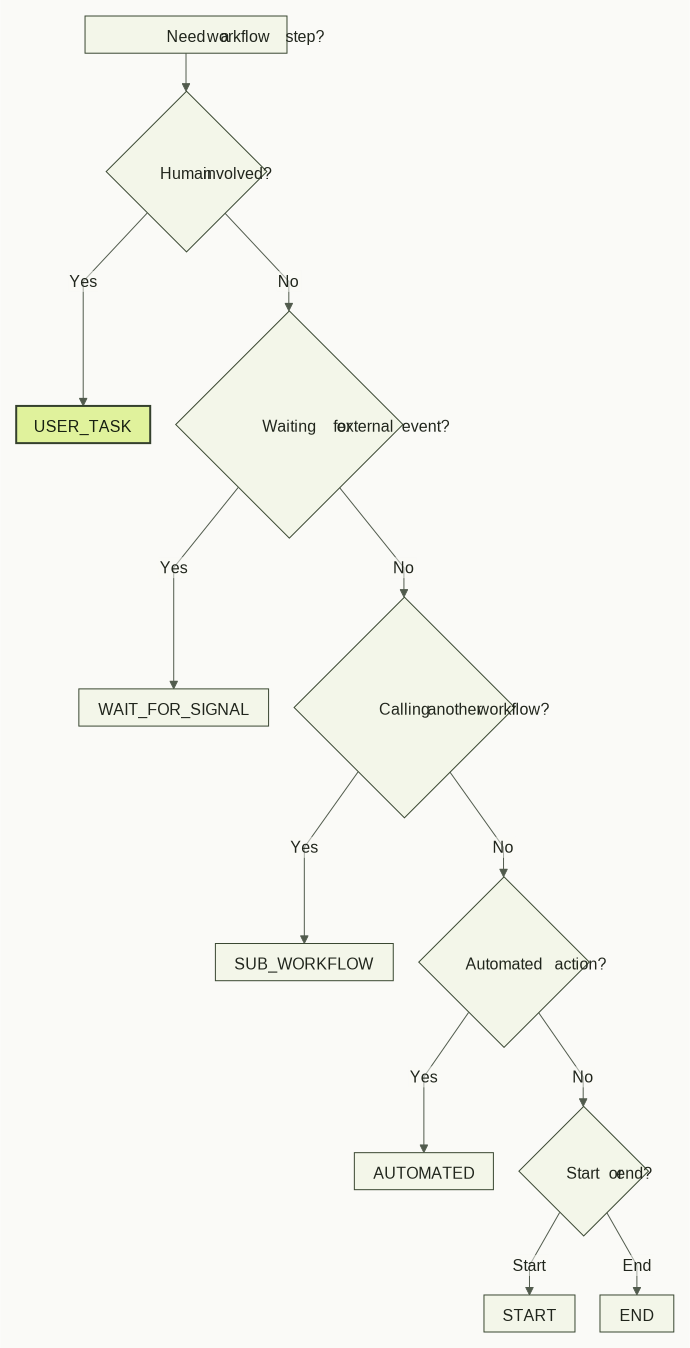
graph TD
    A[Need a workflow step?] --> B{Human involved?}
    B -->|Yes| C[USER_TASK]
    B -->|No| D{Waiting for external event?}
    D -->|Yes| E[WAIT_FOR_SIGNAL]
    D -->|No| F{Calling another workflow?}
    F -->|Yes| G[SUB_WORKFLOW]
    F -->|No| H{Automated action?}
    H -->|Yes| I[AUTOMATED]
    H -->|No| J{Start or end?}
    J -->|Start| K[START]
    J -->|End| L[END]

    classDef focus fill:#e0f29c,stroke:#34402d,color:#172011,stroke-width:2px
    class C focus
Quick Decision Guide:
See Also: