 DocsTopicsSearch docsAPI referenceDocsTopicsSearch docsAPI reference
User guide
Draw a transition for each permitted path out of a step. Use its trigger and conditions to describe when the run should take that path.
When more than one transition may match, review its priority and any configured activities.
A transition represents a possible path from one step to another. When a step completes, the workflow engine evaluates all outgoing transitions to determine where to go next.
Key Concepts:
fromStepId) to a target step (toStepId)Transitions can be triggered in different ways depending on your workflow needs.
The transition fires immediately when the source step completes.
{
  "transitionId": "start-to-review",
  "fromStepId": "start",
  "toStepId": "review-request",
  "trigger": "auto"
}
Use When:
The transition requires explicit user action (e.g., clicking "Approve" or "Reject" on a user task).
{
  "transitionId": "review-to-approved",
  "fromStepId": "review-request",
  "toStepId": "end-approved",
  "trigger": "manual",
  "transitionName": "Approve"
}
Use When:
The transition fires when a specific signal is received.
{
  "transitionId": "wait-to-continue",
  "fromStepId": "wait-for-payment",
  "toStepId": "fulfill-order",
  "trigger": "signal",
  "preConditions": [
    {
      "ruleId": "payment-confirmed",
      "expression": "signal.name === 'payment-confirmed'"
    }
  ]
}
Use When:
The transition fires after a specified duration.
{
  "transitionId": "escalate-after-delay",
  "fromStepId": "wait-for-response",
  "toStepId": "escalated",
  "trigger": "timer",
  "timerConfig": {
    "duration": "2 days"
  }
}
Use When:
Transitions can have pre-conditions and post-conditions that determine whether they can be taken.
Evaluated before the transition fires. If any pre-condition fails, the transition is skipped.
{
  "transitionId": "approve-high-value",
  "fromStepId": "review",
  "toStepId": "end-approved",
  "trigger": "manual",
  "preConditions": [
    {
      "ruleId": "amount-check",
      "expression": "context.amount <= 10000"
    }
  ]
}
Use Cases:
Evaluated after the transition activities execute. If any post-condition fails, the workflow enters an error state.
{
  "transitionId": "charge-payment",
  "fromStepId": "validate",
  "toStepId": "fulfilled",
  "trigger": "auto",
  "postConditions": [
    {
      "ruleId": "payment-success",
      "expression": "activities.charge-payment.output.status === 'succeeded'"
    }
  ]
}
Use Cases:
Conditions can reference business rules defined in the business rules module:
{
  "preConditions": [
    {
      "ruleId": "approval-required",
      "ruleReference": "purchase.requires-approval"
    }
  ]
}
Learn more about business rules →
When multiple transitions from the same step are valid, priority determines which one is taken.
{
  "transitionId": "high-priority-path",
  "fromStepId": "decision",
  "toStepId": "fast-track",
  "trigger": "auto",
  "priority": 100,
  "preConditions": [
    {
      "ruleId": "urgent",
      "expression": "context.priority === 'urgent'"
    }
  ]
}
{
  "transitionId": "normal-priority-path",
  "fromStepId": "decision",
  "toStepId": "standard-process",
  "trigger": "auto",
  "priority": 0
}
Priority Rules:
Use Cases:
Transitions can execute activities as the workflow moves from one step to another.
{
  "transitionId": "approve-and-notify",
  "fromStepId": "review",
  "toStepId": "end-approved",
  "trigger": "manual",
  "activities": [
    {
      "activityId": "send-approval-email",
      "activityName": "Send Approval Email",
      "activityType": "SEND_EMAIL",
      "config": {
        "to": "{{context.requesterEmail}}",
        "subject": "Your request has been approved",
        "body": "Request {{context.requestId}} has been approved."
      }
    },
    {
      "activityId": "update-status",
      "activityName": "Update Request Status",
      "activityType": "UPDATE_ENTITY",
      "config": {
        "commandId": "sales.orders.update",
        "statusDictionary": "sales.order_status",
        "input": {
          "id": "{{context.requestId}}",
          "statusValue": "approved"
        }
      }
    }
  ]
}
Use Cases:
Here's a complete example showing conditional routing:
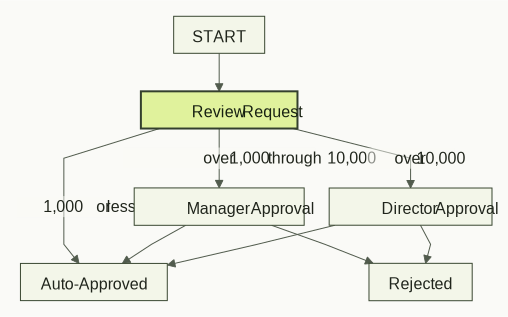
graph TD
    START --> REVIEW[Review Request]
    REVIEW -->|1,000 or less| APPROVED[Auto-Approved]
    REVIEW -->|over 1,000 through 10,000| MANAGER[Manager Approval]
    REVIEW -->|over 10,000| DIRECTOR[Director Approval]
    MANAGER --> APPROVED
    MANAGER --> REJECTED[Rejected]
    DIRECTOR --> APPROVED
    DIRECTOR --> REJECTED

    classDef focus fill:#e0f29c,stroke:#34402d,color:#172011,stroke-width:2px
    class REVIEW focus
Transitions:
When a transition's post-condition fails or an activity throws an error, compensation activities can roll back changes (saga pattern).
{
  "activities": [
    {
      "activityId": "reserve-inventory",
      "activityType": "CALL_API",
      "config": { "url": "..." },
      "compensate": true,
      "compensationActivity": {
        "activityType": "CALL_API",
        "config": {
          "url": "https://inventory.example.com/release/{{context.productId}}"
        }
      }
    }
  ]
}
Learn more about compensation →
By default, if an activity fails, the workflow stops. You can override this:
{
  "transitionId": "attempt-notification",
  "continueOnActivityFailure": true,
  "activities": [
    {
      "activityType": "SEND_EMAIL",
      "config": { "to": "{{context.email}}" }
    }
  ]
}
A transition can be marked as an error route with "kind": "error". It is only ever taken when its source step fails – normal routing ignores it entirely – so adding one can never change the happy path.
{
  "transitionId": "charge-failed",
  "fromStepId": "charge_card",
  "toStepId": "notify_finance",
  "kind": "error",
  "trigger": "auto"
}
When an error route is followed, the failure is published into the run context under the reserved key __error, so the recovery path can read what went wrong. In the Studio, steps that can fail grow an error output handle and error routes render as red dashed lines with a warning icon.
When a step fails and has no error route wired, its errorDirective decides what happens:
| Mode | Effect |
|---|---|
fail | The workflow fails. This is the default and what happens when no directive is set. |
continueWithFallback | The run carries on. The step itself stays FAILED – the history is not rewritten – and fallbackValue is written into the context under the failing step's id. |
failureQueue | The run is parked rather than failed: it is paused and flagged as needing attention, so it can be resumed after somebody fixes the cause. Because it is suspended and not terminated, compensation does not run. |
{
  "stepId": "charge_card",
  "stepType": "AUTOMATED",
  "errorDirective": { "mode": "continueWithFallback", "fallbackValue": { "charged": false } }
}
As a last resort, a definition can declare one errorHandler – exactly one of two forms:
{ "errorHandler": { "stepId": "cleanup" } }
Jumps to a step inside the same workflow, with __error in context. A step never jumps to itself.
{ "errorHandler": { "workflowId": "ops.incident-triage", "version": 2 } }
Starts another workflow as a catch-all, with the failed step id, the error and a snapshot of the context as its input. It is scheduled before compensation runs, so the snapshot describes the failure rather than the cleanup, and it still runs when compensation itself throws. Catch-all handlers do not nest: a handler workflow that fails does not trigger another one.
The order is always: a wired error route first, then the step's directive, then the workflow-level handler, then plain failure.
Routes carry their configuration on their face, so a decision is readable without opening anything:
+N badge for the rest, and below a zoom threshold they collapse to a labelled row of dots – that is what keeps a large flow readable.Route priority is edited by dragging a step's outgoing routes into the order you want them tried, rather than by typing numbers; the numeric priority is derived from that order. Decision steps (IF_ELSE, SWITCH) get the same ordering through their case list instead, so there is only ever one control for it.
See Also: