 DocsTopicsSearch docsAPI referenceDocsTopicsSearch docsAPI reference
User guide
Open the assistant from the back office, choose an available agent and ask it to look up a record. Review any change it proposes before you confirm it.
Open Mercato ships with AI-powered assistants you open directly from the admin pages you already use. Each assistant is scoped to one domain (customers, catalog) and knows only what its agent contract allows it to know. Every change the assistant proposes requires an explicit Confirm before it touches your data.
Tip · When to use each assistant
There are two ways to open an assistant.
Every backoffice page shows an AI pill in the topbar (next to global search). Click it – or press Cmd/Ctrl+L from anywhere in the admin – to open a search dialog listing every assistant you have access to. Type to filter by name, description, or module; arrow keys navigate; Enter launches; Escape closes.
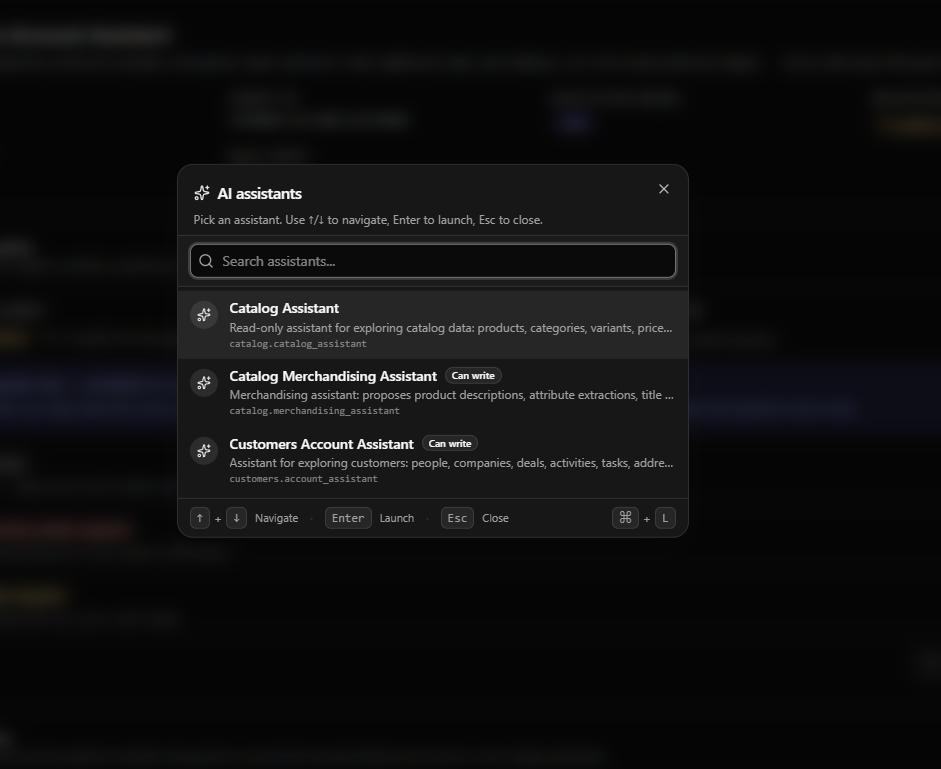
The launcher self-hides when no AI provider is configured or when your account has access to no assistants. If you don't see the button, ask your administrator to grant ai_assistant.view to your role and confirm at least one of ANTHROPIC_API_KEY / OPENAI_API_KEY / GOOGLE_GENERATIVE_AI_API_KEY is set.
Each row shows the assistant name, what it does, and a Can write badge if the assistant is allowed to propose changes (always behind an approval card).
On any supported page (person, company, deal, products list, …) you'll see an Ask AI button in the page header or toolbar. Click it to slide the AI sheet in from the right. The sheet carries the current page context automatically – there's no need to paste record ids.
The Customers AI assistant, opened from the people list, can search across people, companies, deals, and activities and stream rich record cards back into the chat:

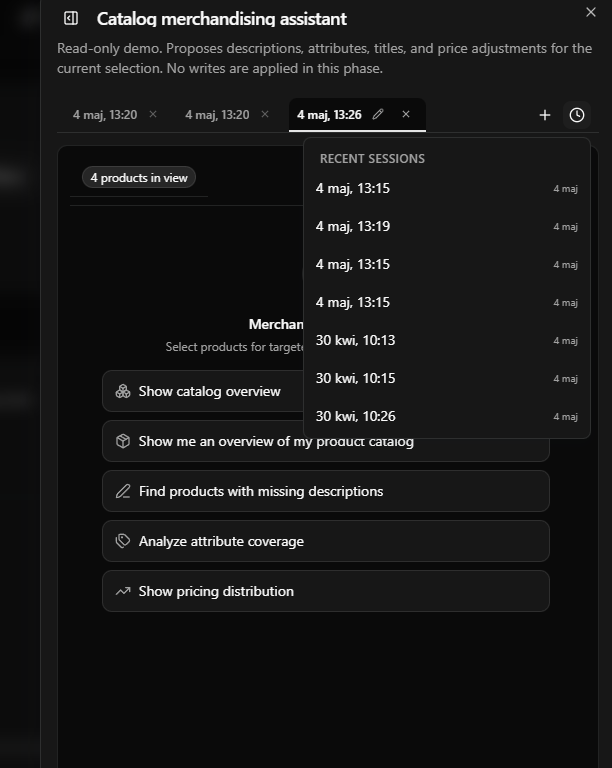
The Merchandising Assistant lives on the products list at /backend/catalog/catalog/products. Pick any set of rows with the row-checkbox column, click Ask AI, and the sheet opens primed with four canned prompts:
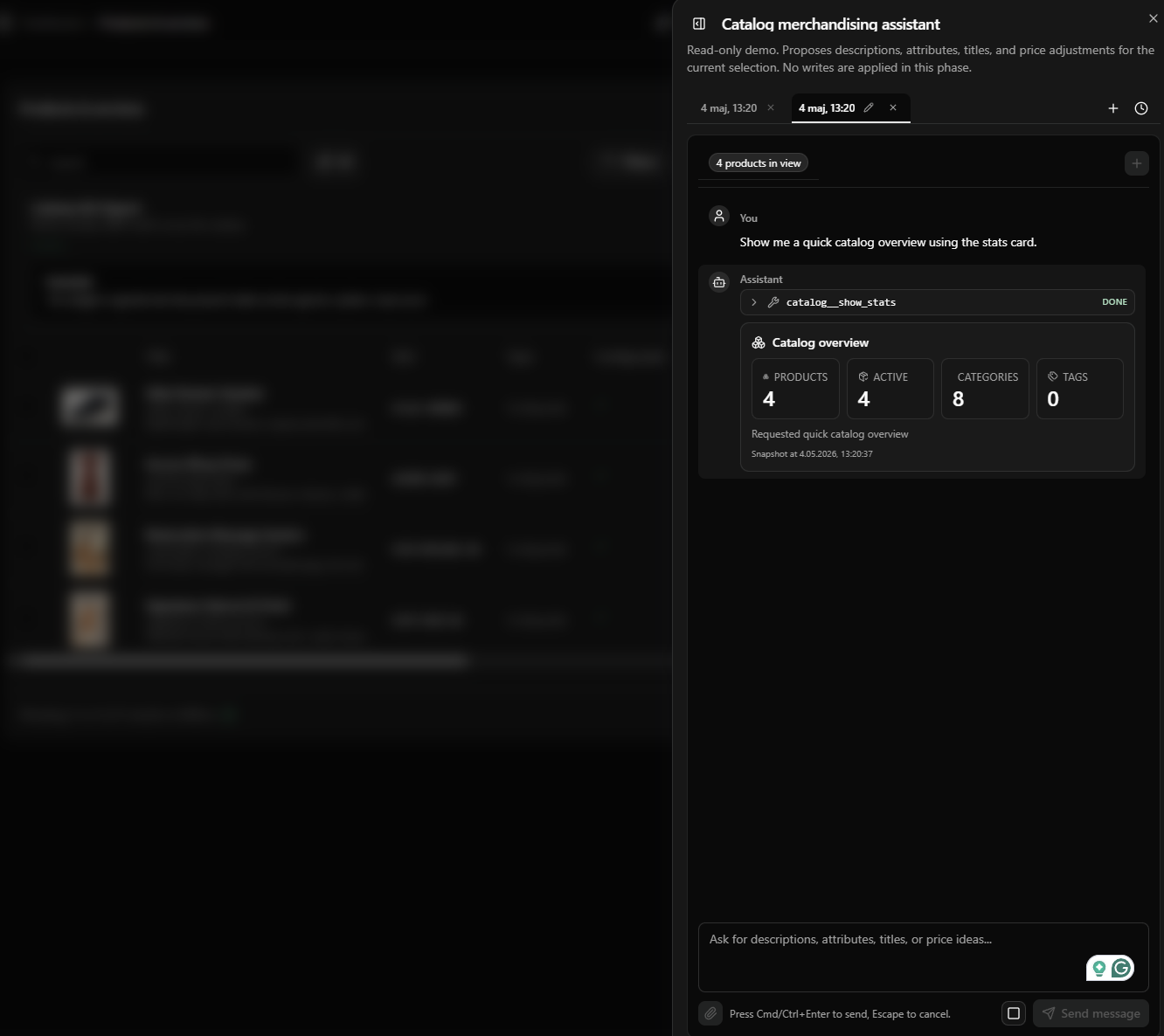
The assistant streams quick stats like product, active, category, and tag counts as a compact overview card so you can size up the selection at a glance:
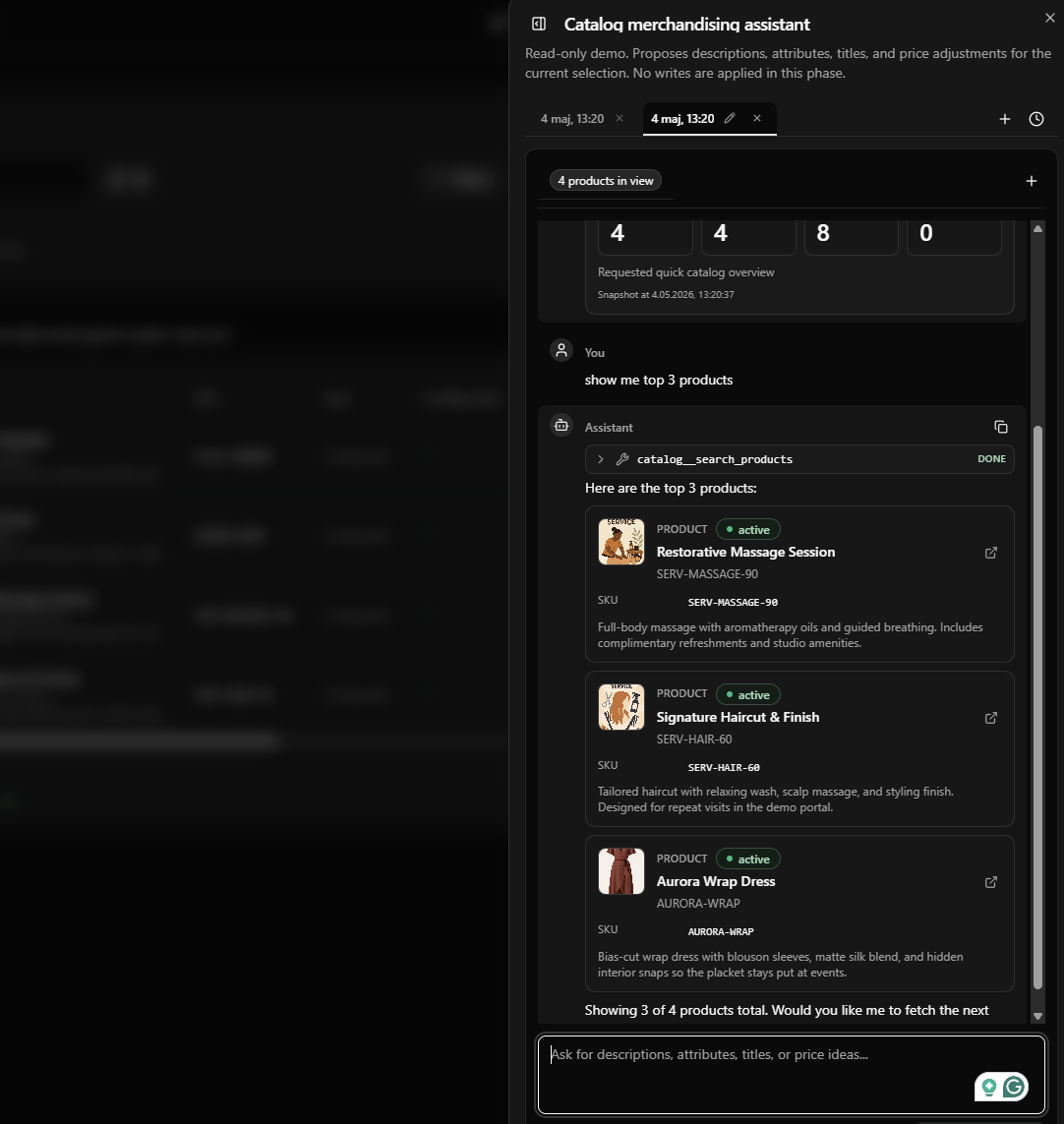
Drilling into the same chat, asking for a sample of records returns rich product cards with status badges, SKU, description, and a deep link back to the record:
Every chat thread is preserved per assistant. Open the history menu in the sheet header to jump back into a prior session – the canned prompt picker stays accessible while you flip between threads:
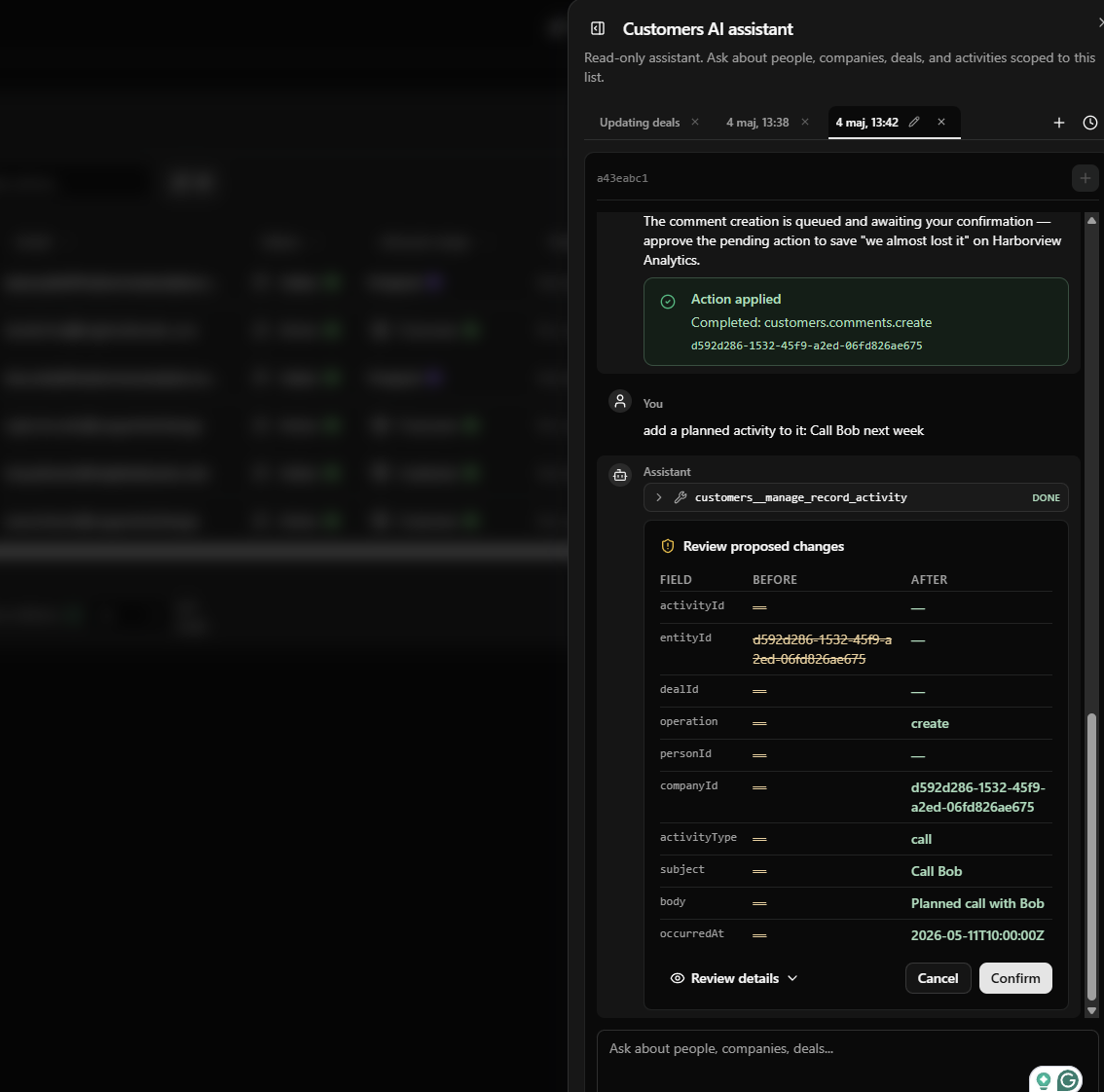
Any time the assistant wants to write something, it does not write directly. Instead it renders a proposal card with:
catalog.update_product).Nothing is persisted until you press Confirm.
The proposal card below was raised by the Customers Account Assistant when the operator asked it to log a planned call as a new activity. Notice the Action applied banner from the previous turn (a comment that was already approved earlier in the session) and the new Review proposed changes card with a per-field before/after table – every value the assistant wants to write is shown alongside the Cancel and Confirm buttons:
After you press Confirm:
Not every assistant can write. An assistant's operating envelope is printed in the sheet header:
Your administrator can tighten an assistant from confirm-required down to read-only at any time (see AI Agents settings). They cannot loosen it beyond what the shipped agent declares.
Open Mercato can use local OpenAI-compatible servers for typed AI agents. This is useful for development, demos, offline work, or testing open-weight Llama models before choosing a hosted provider.
http://localhost:1234/v1..env:OM_AI_PROVIDER=lm-studio
LM_STUDIO_API_KEY="<lm-studio-api-key>"
LM_STUDIO_BASE_URL=http://localhost:1234/v1
OM_AI_MODEL=<the model id shown by LM Studio>
LM Studio accepts OpenAI-compatible requests on the local server. The API key is only a placeholder for local development; use the exact model id reported by LM Studio's server or model list.
If you run Llama through Ollama's OpenAI-compatible endpoint, use the built-in ollama provider:
OM_AI_PROVIDER=ollama
OLLAMA_API_KEY="<ollama-api-key>"
OLLAMA_BASE_URL=http://localhost:11434/v1
OM_AI_MODEL=llama3.3
For hosted Llama models, use one of the OpenAI-compatible providers in the settings page, such as OpenRouter, Groq, Together, Fireworks, or DeepInfra. After changing env values, restart the app and open Settings → AI Allowlist and Settings → AI Agents to confirm the provider and model are available for the tenant and agent.
| Combo | Action |
|---|---|
Cmd/Ctrl+L | Open the global AI assistant launcher |
Cmd/Ctrl+K | Open the global search dialog |
Cmd/Ctrl+J | Open the legacy command palette (OpenCode chat) |
Cmd/Ctrl+Enter | Send the current message in the chat |
Esc | Cancel the streaming response or close the dialog |