 DocsTopicsSearch docsAPI referenceDocsTopicsSearch docsAPI reference
User guide
Connect the Akeneo instance, choose how its attributes map to Open Mercato and run an initial import. Check a product and its variants before scheduling regular syncs.
If your deployment already knows the Akeneo credentials, you can preconfigure the integration automatically instead of filling the credentials form manually after every fresh install.
Use these env vars:
OM_INTEGRATION_AKENEO_API_URL=https://your-akeneo-instance.cloud.akeneo.com
OM_INTEGRATION_AKENEO_CLIENT_ID=1_abc123...
OM_INTEGRATION_AKENEO_CLIENT_SECRET="<om-integration-akeneo-client-secret>"
OM_INTEGRATION_AKENEO_USERNAME=admin
OM_INTEGRATION_AKENEO_PASSWORD="<om-integration-akeneo-password>"
OM_INTEGRATION_AKENEO_ENABLED=true
OM_INTEGRATION_AKENEO_FORCE_PRECONFIGURE=false
To rerun the preset for an existing tenant:
yarn mercato sync_akeneo configure-from-env --tenant <tenantId> --org <organizationId>
Open Mercato validates the Akeneo API URL server-side before any network call to prevent SSRF (Server-Side Request Forgery) and credential exfiltration. The following rules are enforced:
By default, only Akeneo SaaS hosts are allowed: *.cloud.akeneo.com and *.akeneo.cloud.
If your Akeneo PIM runs on a custom domain, set the OM_INTEGRATION_AKENEO_ALLOWED_HOSTS environment variable to a comma-separated list of allowed hostnames. Wildcard subdomains are supported:
# Single self-hosted instance
OM_INTEGRATION_AKENEO_ALLOWED_HOSTS=pim.example.com

# Multiple hosts with wildcard
OM_INTEGRATION_AKENEO_ALLOWED_HOSTS=*.pim.example.com,akeneo.staging.example.com
Legacy aliases OPENMERCATO_AKENEO_ALLOWED_HOSTS and AKENEO_ALLOWED_HOSTS are also accepted (checked in priority order).
Allowed hosts must resolve to public, routable IP addresses by default. If your deployment intentionally reaches Akeneo over a trusted private network, combine an exact host allowlist with:
OM_INTEGRATION_AKENEO_ALLOWED_HOSTS=pim.example.internal
OM_INTEGRATION_AKENEO_ALLOW_PRIVATE_URLS=true
Use this only for operator-controlled internal deployments; it disables the private-IP DNS guard for Akeneo requests.
Info
All authenticated requests (OAuth token exchange, product pagination, media downloads) are pinned to the validated origin. If the remote API returns absolute URLs pointing to a different host, those requests are rejected to prevent token leakage.
integrations.credentials.manage and data_sync.manage features enabled for your role in Open Mercato.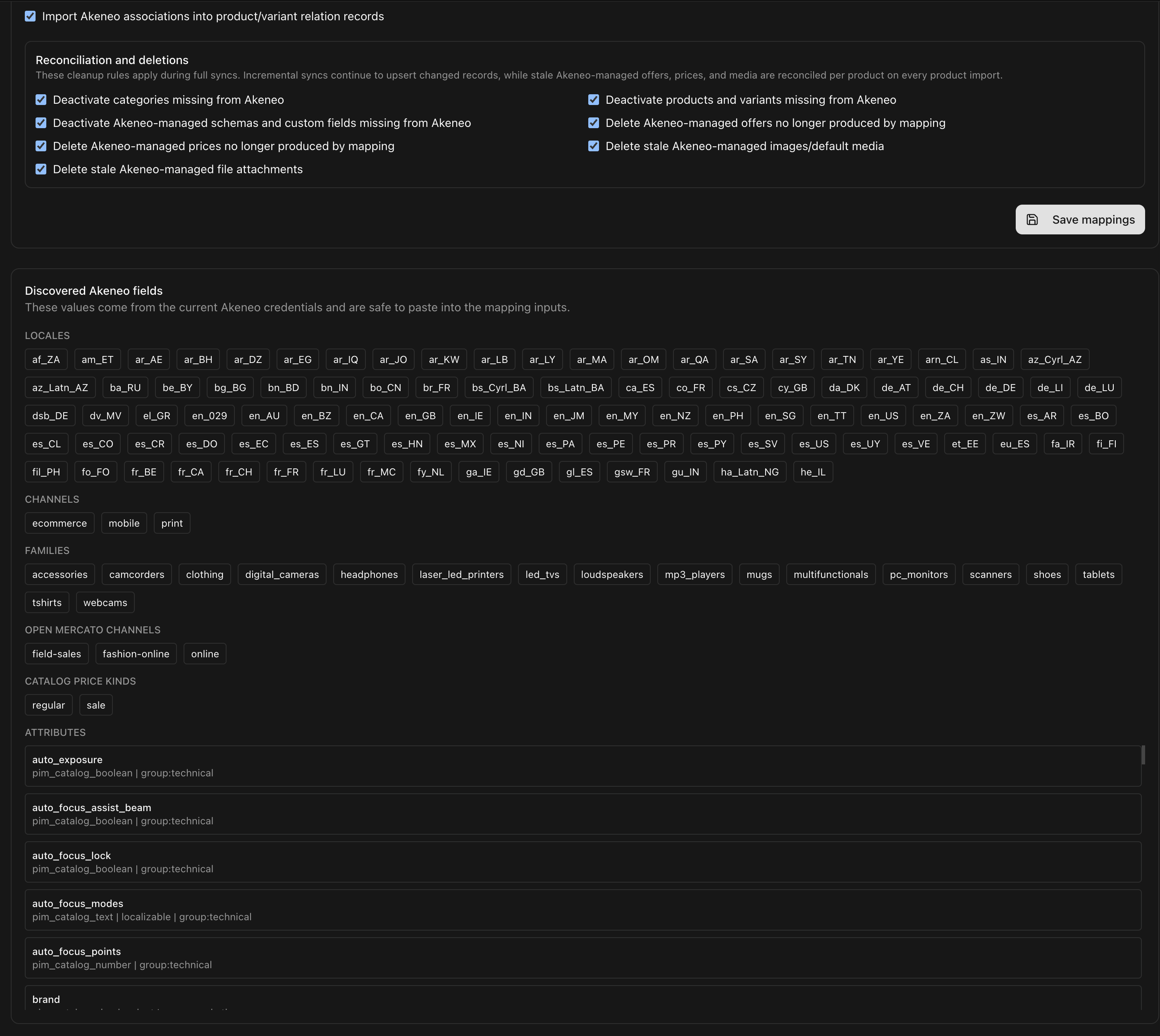
| Field | Where to find it | Example |
|---|---|---|
| API URL | Your Akeneo instance URL | https://mycompany.cloud.akeneo.com |
| Client ID | Akeneo → Connect → Connection settings → Credentials | 1_abc123def456... |
| Client Secret | Same page as Client ID | secret_xyz789... |
| Username | The Akeneo user associated with the connection | openmercato_api |
| Password | Password for that Akeneo user | •••••••• |
Caution
The Akeneo user must have read access to products, categories, attributes, families, and media files. Without these permissions the import will fail with authorization errors.
Switch to the Health tab and click Run Check. A Healthy result confirms Open Mercato can authenticate with your Akeneo instance using OAuth and reach the API.
If the check fails, verify that:
Before importing products, Open Mercato needs to understand how your Akeneo attributes map to catalog fields. Navigate to the Attributes Mapping section on the Akeneo integration page.
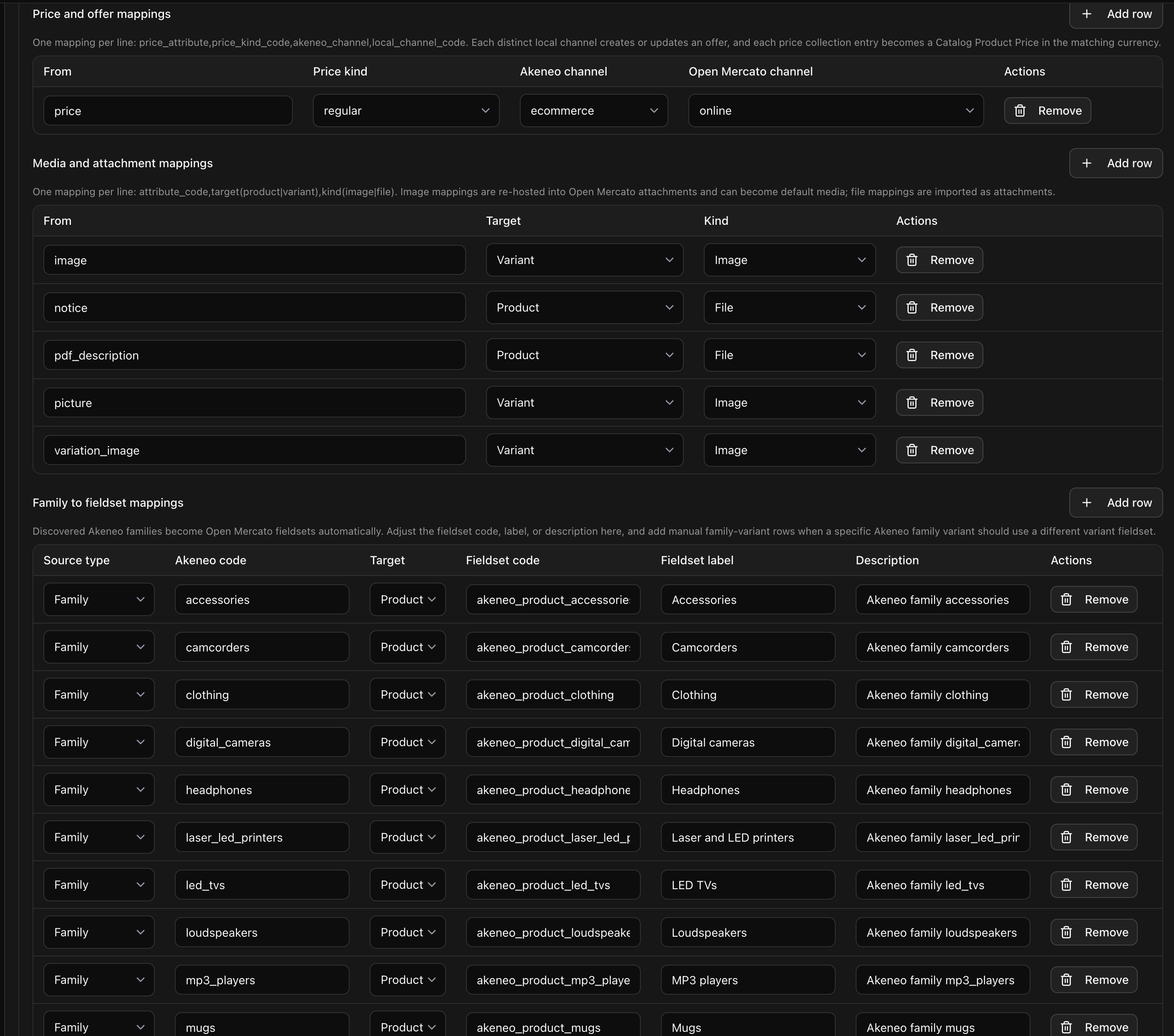
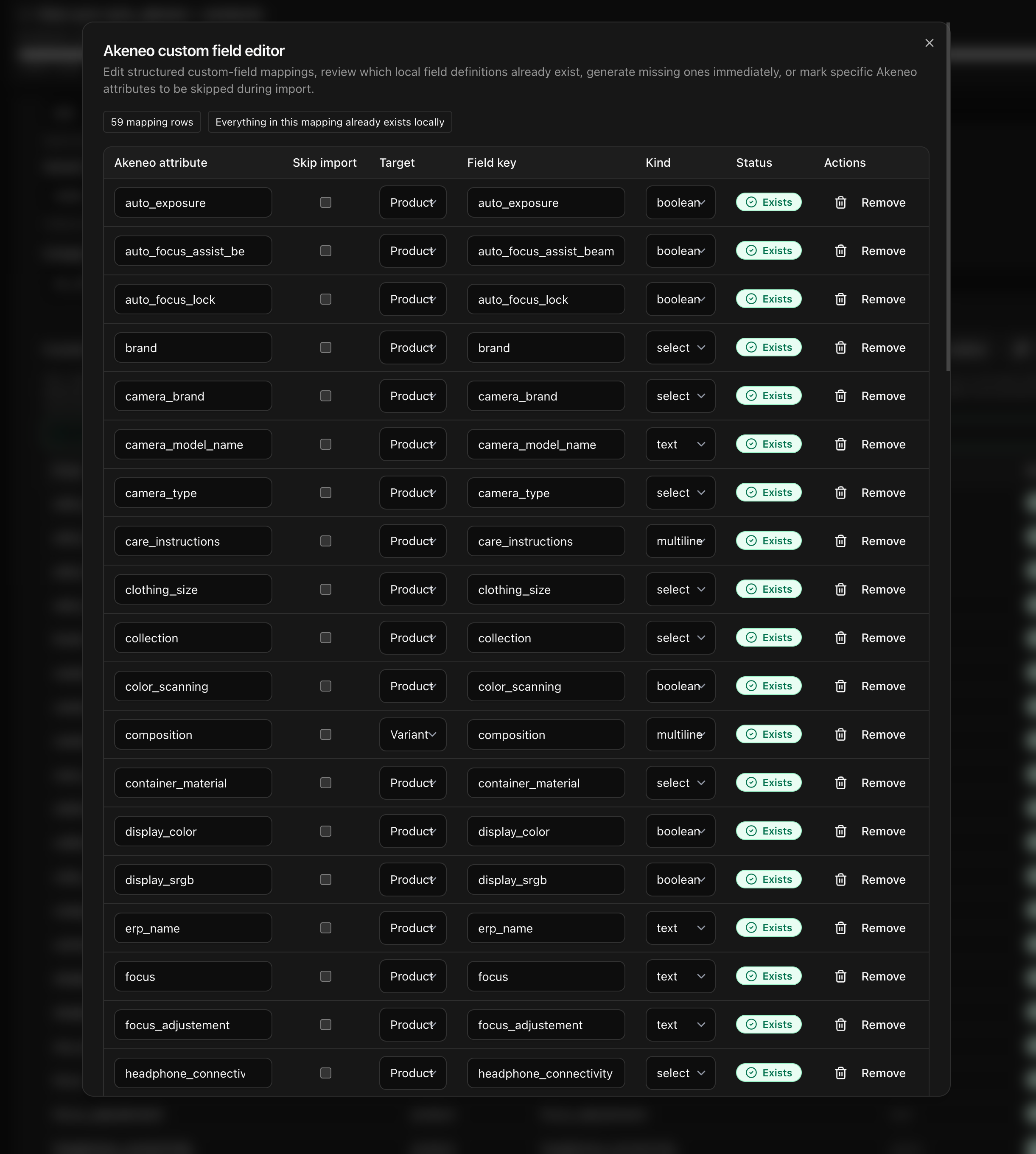
Open Mercato automatically discovers your Akeneo families and their attributes. For each attribute, you can choose how it maps:
Click on any attribute row to open the attribute editor and configure the mapping in detail.
Tip
Open Mercato infers sensible defaults for most attributes. Review the mapping before your first import, but you don't need to configure every attribute manually.
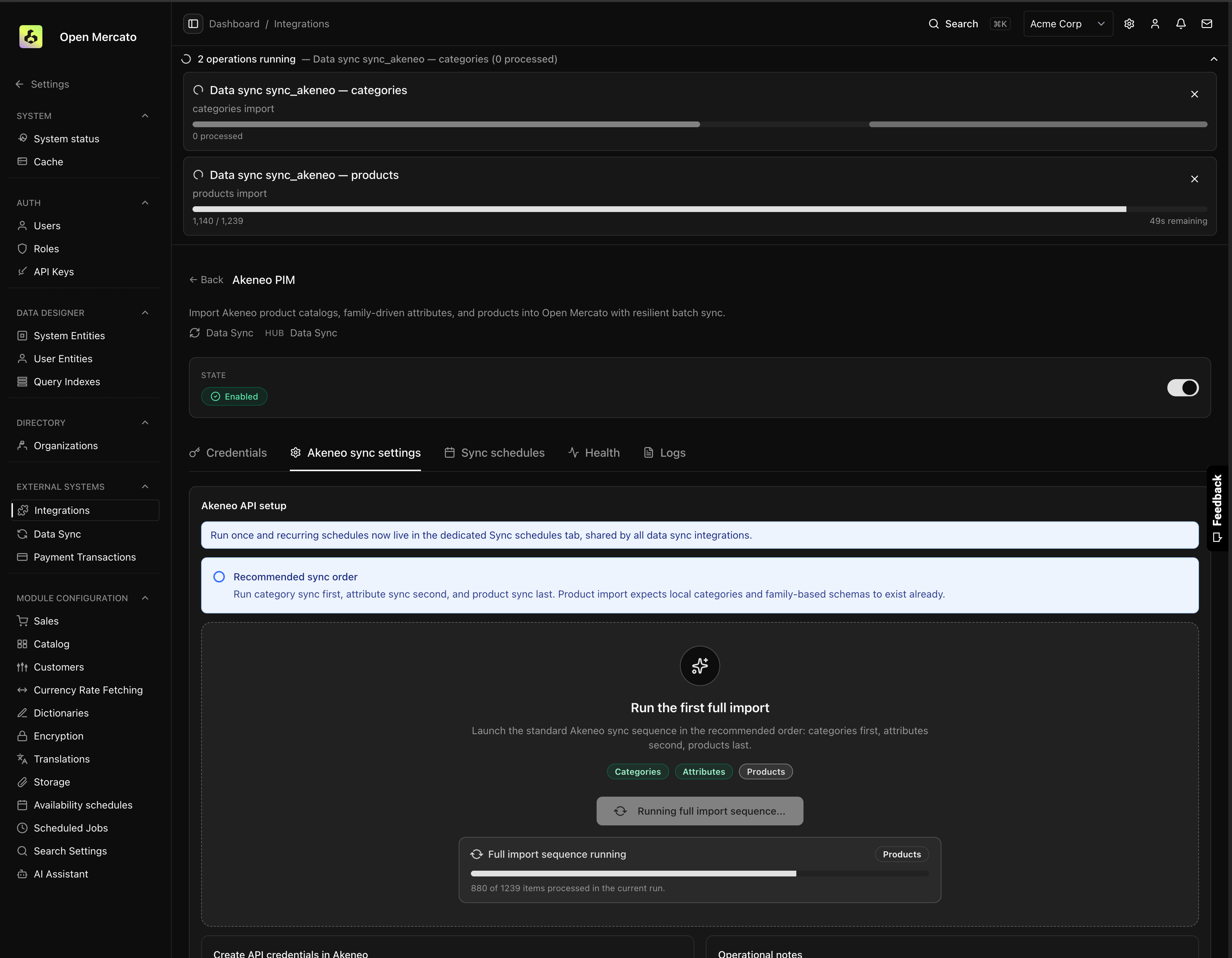
Once credentials are verified and attributes are mapped, start the initial full import. Navigate to the import section and click Start Import.
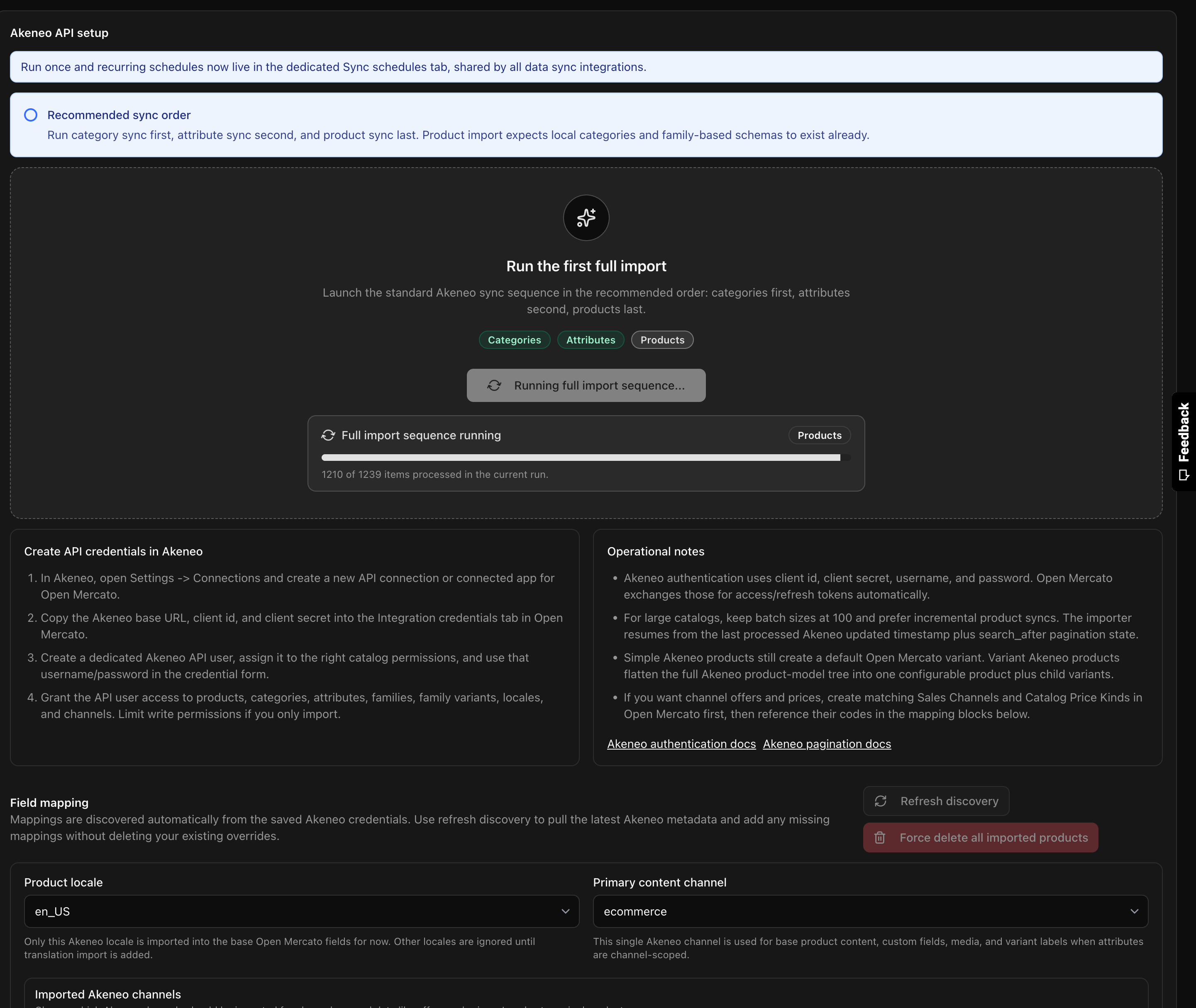
The first import runs in three sequential steps:
Each step shows real-time progress. You can monitor the import from the Ongoing Imports view.
Info
The first import can take several minutes for large catalogs (10,000+ products). Open Mercato processes products in batches with rate limiting to avoid overloading your Akeneo instance. You can safely navigate away – the import continues in the background.
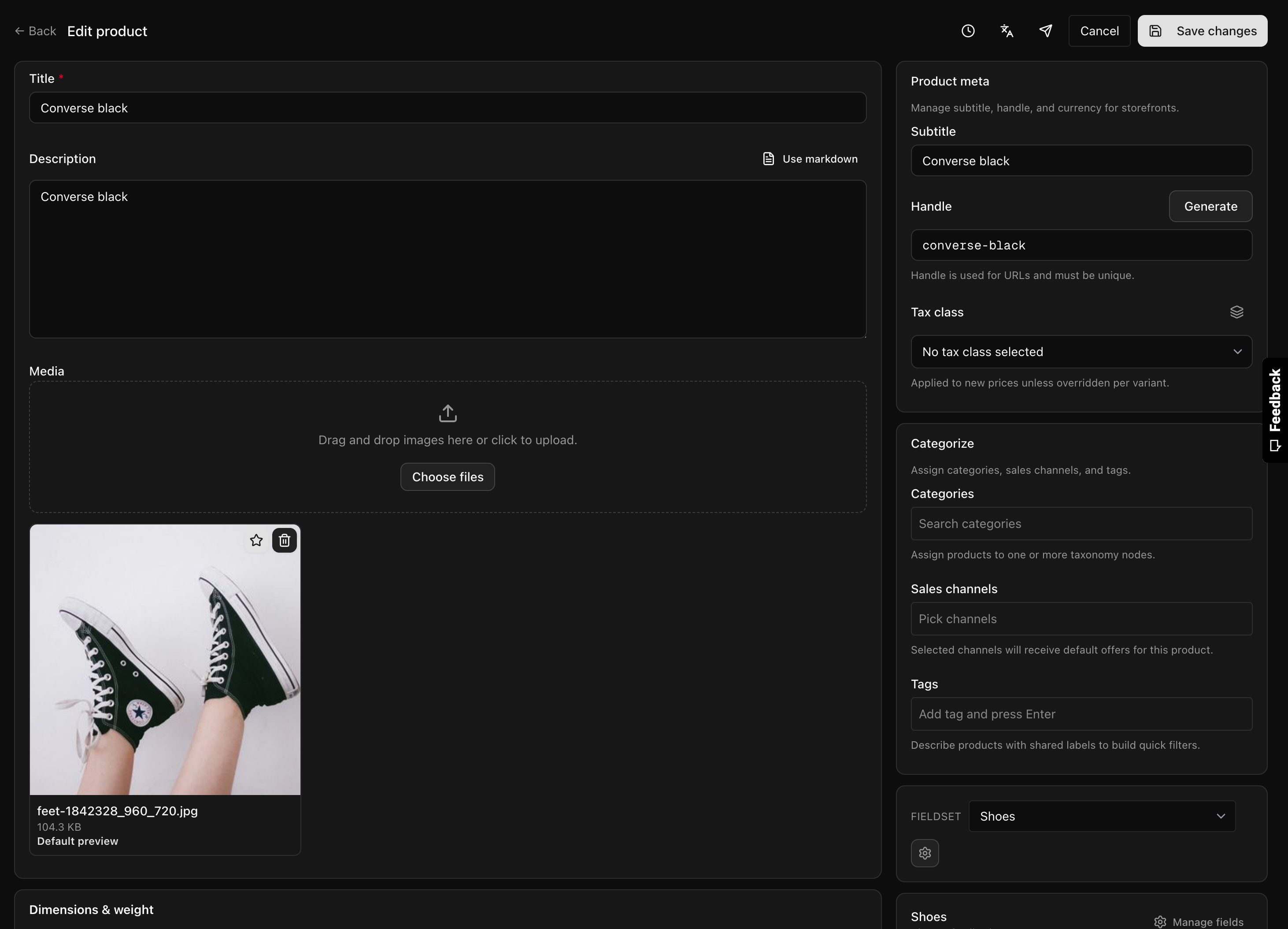
After the import completes, navigate to Catalog → Products to verify your data. Here is what to expect:

The main product appears with all mapped fields populated – name, description, images, and any custom fields from your attribute mapping.

Akeneo product models with variant axes are imported as Open Mercato product variants. Each variant inherits the parent product's shared attributes and adds its own axis values (e.g., size, color).
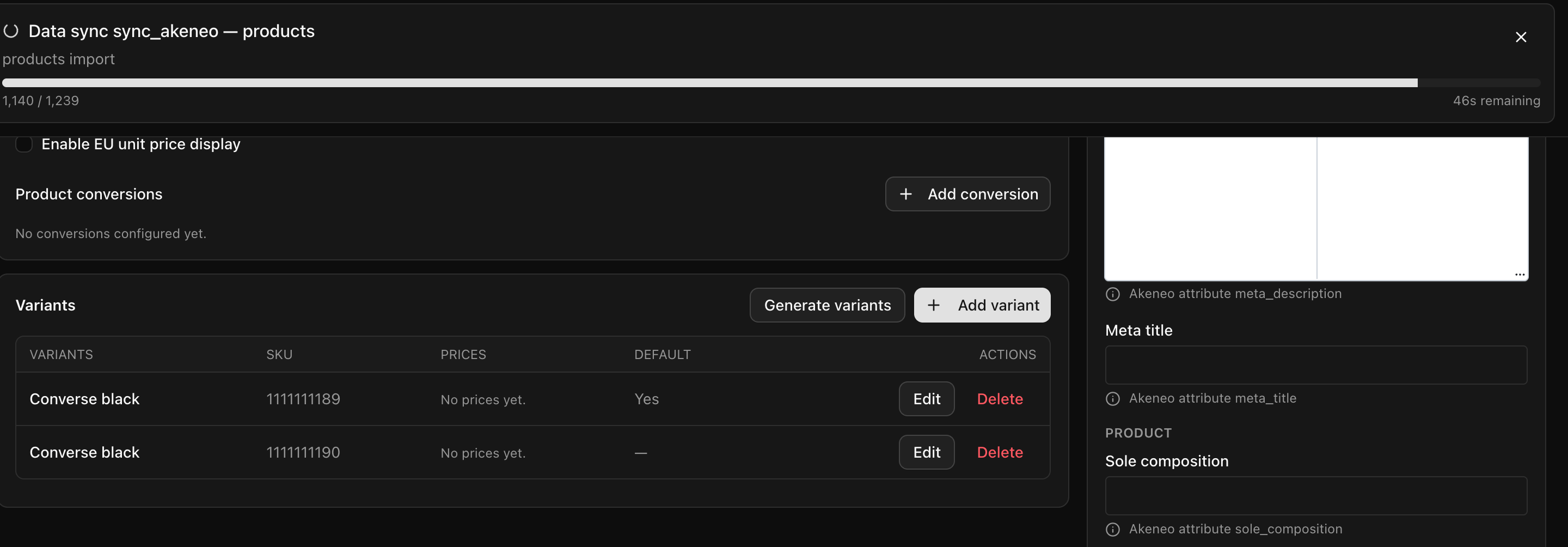
The Akeneo family structure is preserved through option schemas and custom field sets, keeping your product data organized.

After the initial import, set up automatic synchronization to keep your catalog in sync with Akeneo. Open the Scheduler settings for the Akeneo integration.
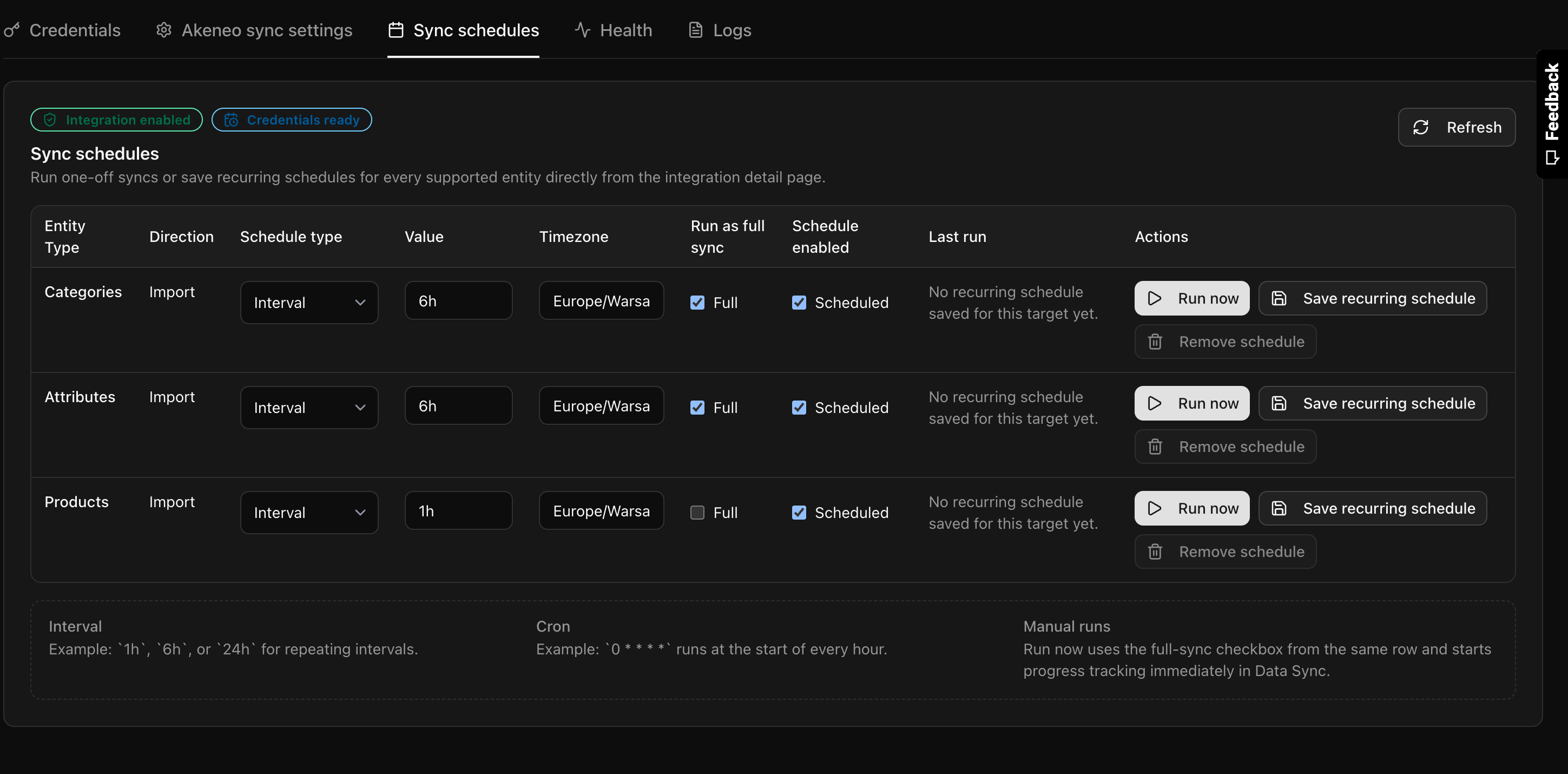
Configure the sync interval to match your needs. Incremental syncs are fast because they only fetch products updated since the last successful run.

| Setting | Recommendation |
|---|---|
| Sync interval | Every 5–15 minutes for active catalogs, hourly for stable ones |
| Mode | Incremental (default) – only fetches changes since last sync |
Tip
Incremental syncs use Akeneo's updated timestamp filter, so only modified products are fetched. A sync of a 50,000-product catalog with 20 changes takes seconds, not minutes.
Akeneo uses a two-level hierarchy for configurable products:
Product Model (e.g., "Converse Chuck Taylor")
  └── Variant (e.g., "Size 42, Black")
  └── Variant (e.g., "Size 43, White")
Open Mercato flattens this into:
Product (e.g., "Converse Chuck Taylor")
  ├── Variant: Size 42, Black
  ├── Variant: Size 43, White
  └── Option Schema: Size + Color (from family variant axes)
The family variant axes become option schemas automatically, so your storefront can render proper size/color selectors.
During import, Open Mercato downloads product images and files from Akeneo using authenticated API requests and re-hosts them in the local attachment system. This means:
Imported media go through the same checks as files uploaded in the admin panel:
OM_ATTACHMENT_MAX_UPLOAD_MB (default 25 MB) is not downloaded past that limit.OM_ATTACHMENT_TENANT_QUOTA_MB (default 512 MB).The product is still imported without a rejected file, and a warning with code sync_akeneo.media_rejected is written to the integration log. The warning is linked to the product, not to a sync run, so filter the integration log by that code to find it. When the tenant quota is full, the product's import fails and is listed in the sync run. Free up space or raise the quota, then run a full sync to import it again.
Every request to Akeneo, including reading the response body, must finish within OM_INTEGRATION_AKENEO_REQUEST_TIMEOUT_MS (default 30 000 ms). Raise it if large media downloads time out on a slow link. JSON responses larger than OM_INTEGRATION_AKENEO_MAX_RESPONSE_BYTES (default 32 MiB) fail the request.
| Problem | Solution |
|---|---|
| Health check fails with "Unauthorized" | Verify Client ID, Secret, Username, and Password. Regenerate the connection credentials in Akeneo if needed. |
| Health check fails with "Connection refused" | Check the API URL. Ensure your server can reach the Akeneo instance (firewall, DNS). |
| Health check fails with "host is not allowed" | Your Akeneo URL does not match the default host allowlist (*.cloud.akeneo.com, *.akeneo.cloud). Set OM_INTEGRATION_AKENEO_ALLOWED_HOSTS to include your custom domain. See URL security and host allowlist. |
| Products imported without images | The Akeneo user may lack media read permissions. Check the connection's permission scope in Akeneo. Also check the integration log for sync_akeneo.media_rejected warnings: files that are too large, active content (SVG/HTML) and executables are skipped. See Media and response limits. |
| Missing attributes on imported products | Review the attribute mapping – unmapped attributes are skipped by default. |
| Variants not appearing | Ensure the source products are product models (not simple products) with family variants configured in Akeneo. |
| Only one variant of a product has prices | Earlier versions removed the prices of a product's other variants whenever one variant was imported. Run one full products sync (Run as full sync) to restore them; incremental syncs only restore variants that changed in Akeneo. |
| Sync seems stuck | Check Ongoing Imports for error details. Large catalogs may take time on the first full import. |
| Duplicate products after re-import | Open Mercato matches products by Akeneo identifier. If identifiers changed in Akeneo, duplicates can occur – use the deletion reconciliation to clean up. |