User guide
Create a sales document
Choose whether the document is a quote or an order and select the customer it belongs to. Check the resulting document before adding items and adjustments.
Use the Create flow to spin up a quote or order in one pass. The form respects your numbering format, dictionaries, and address policies.
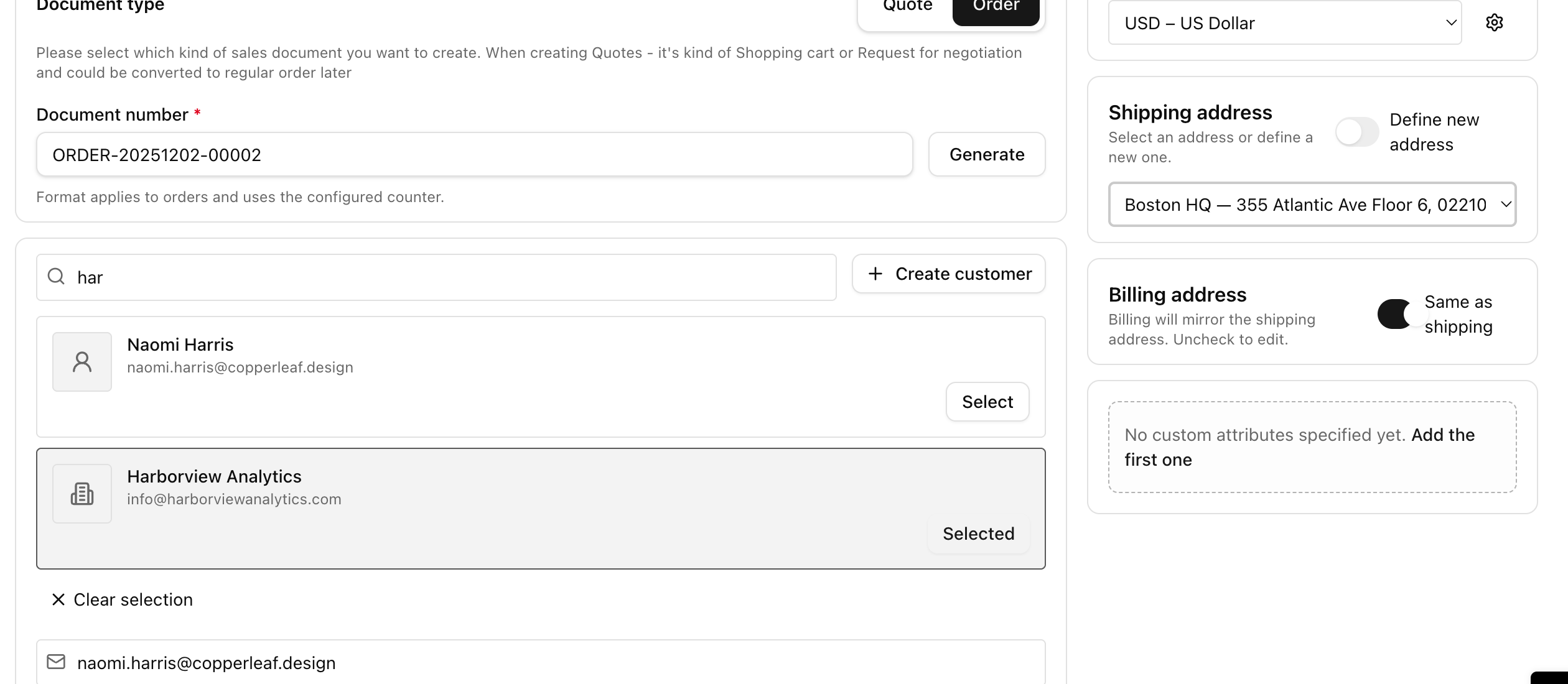
Steps to create
- Document type – choose Quote or Order. The number field follows your configured pattern and sequence; use Generate to pull the next value.
- Customer – search or Create customer inline. Changing the customer clears addresses to avoid mixing contact data.
- Currency – set per document; totals and adjustments respect this currency.
- Addresses – pick shipping/billing or define new ones. “Same as shipping” keeps billing in sync until you uncheck it.
- Custom attributes – populate any custom fields configured for sales documents.
Keyboard: Cmd/Ctrl + Enter to save, Escape to cancel dialogs.
Tips
- Use quotes for negotiation or draft carts, then convert to orders once confirmed.
- Keep numbering tokens predictable (see Sales settings → Document numbers).
- Address validation follows your dictionary-backed address types and editing guards.
 DocsTopicsSearch docsAPI reference