 DocsTopicsSearch docsAPI referenceDocsTopicsSearch docsAPI reference
Introduction
A command asks the application to do something. An event announces that something happened. A workflow keeps track of work that takes more than one step. Creating an order, announcing its creation and waiting for a delivery review are three separate responsibilities. Here is where each belongs.
The Sales command sales.orders.create takes the input for a new order. Its handler applies the module's rules and saves the document. The caller needs to know whether the operation succeeded. A malformed order or a caller without the required access should receive an error. A later notification about the order is a different piece of work. Sales commands
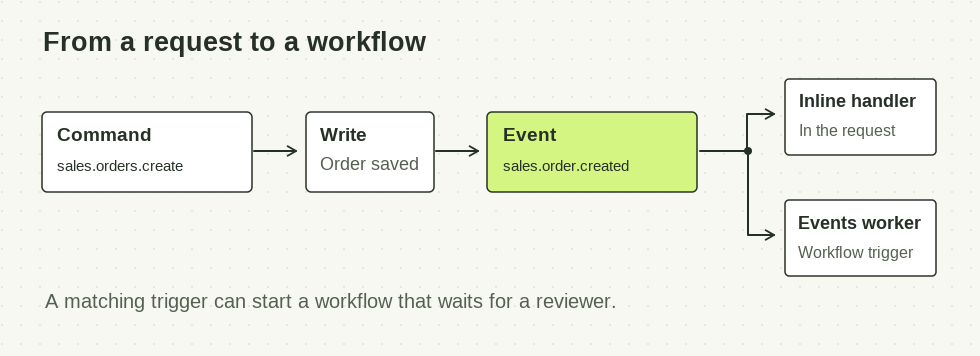
Sales declares sales.order.created and sales.order.confirmed in its event catalog. The catalog names the events a module can publish. Emitting an event sends its name and payload to the event bus. A subscriber registers an event name or pattern and supplies the code to run on a match.
Choose the event that captures the moment you care about. If a dispatcher should review delivery instructions as soon as an order arrives, listen for creation. If dispatch should begin only after confirmation, listen for confirmation. Read the Sales event catalog
An inline subscriber runs as part of handling an event in the current process. With the default delivery settings, publishing a persistent event sends work for matching persistent subscribers to the events queue. An events worker picks it up. Subscribers registered for inline delivery can still run in the current process. The subscriber belongs to the module that needs the reaction, whether it runs now or in a worker.
One reaction, such as invalidating a cached total, can fit in one subscriber. Give a handler that calls an external service a way to recognize a retry. If an action has stages, waits for a person, or needs a history of what is still outstanding, use a workflow. Event delivery · Queue workers
A workflow definition describes the steps, transitions and triggers. An instance is one execution of that definition. Two orders can follow the same delivery-review definition while one waits for its dispatcher and the other has already cleared review. Open the instance to see which step that particular order reached.
sales.order.created. Map the order identifier from the event payload into the workflow context. Save the definition with a unique workflow ID and enable it.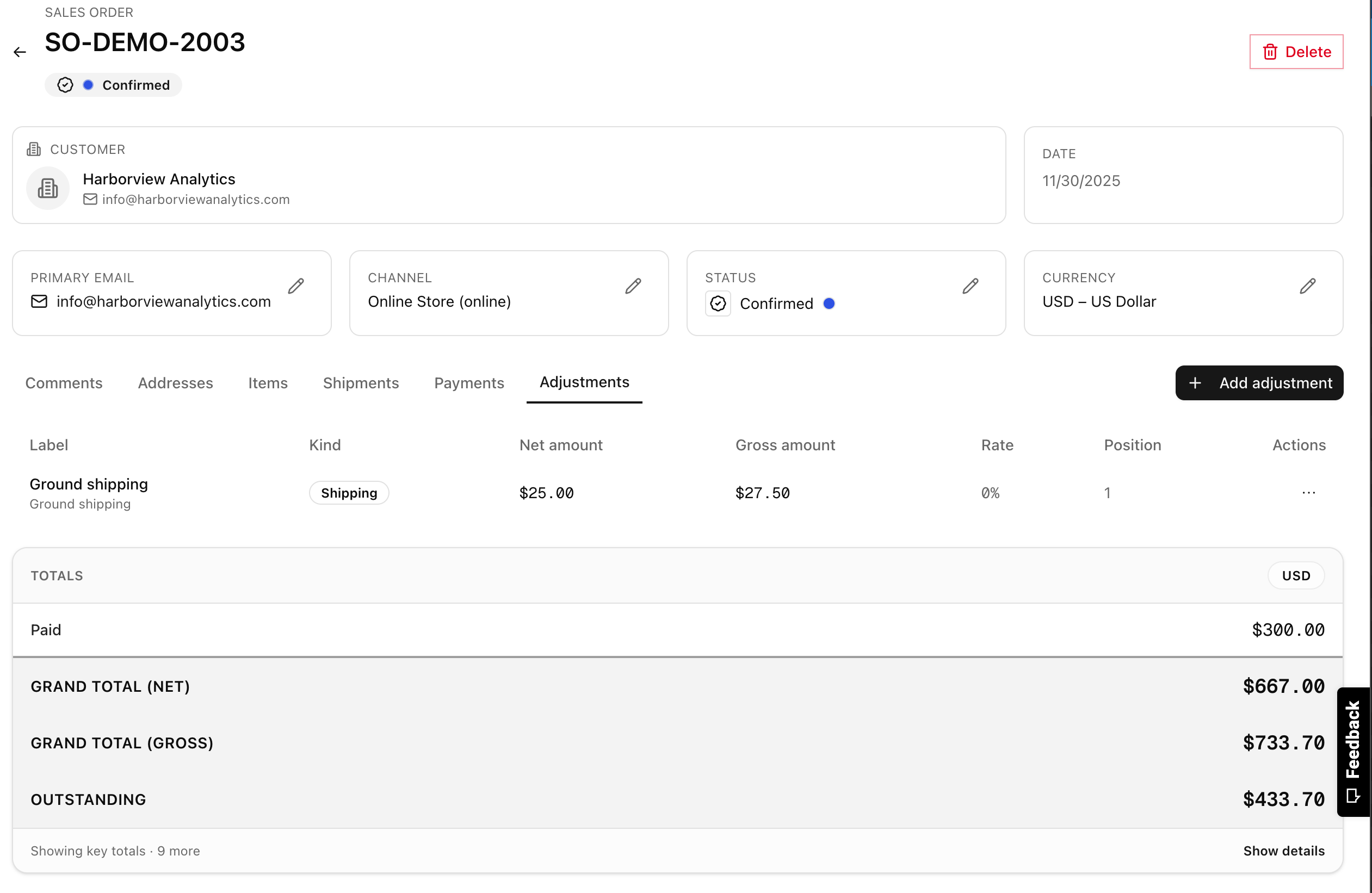
If you see the order but no workflow instance, check the event ID, the enabled definition, its organization and its trigger filters. For a queued event, check that a worker is draining the events queue. If an instance exists, open it to see its current step and assignee. Workflow Studio guide
Run an Open Mercato app and try the order review with sample data. For a coding walkthrough, build a small inventory module. To follow an existing business process, receive a supplier delivery or connect a buyer to a shopping cart.
Previous: What a module owns · Next: What you can build with Open Mercato