User guide
Checkout Pay Links
A pay link opens a checkout page for one payment. Set up a template when several links should share branding or terms, then inspect the link as a customer would see it.
Checkout lets you collect one-off payments through shareable pay links without building a separate storefront or creating a full sales document first. Open the feature from Checkout in the admin sidebar.
Before you start
- Configure at least one payment provider in External Systems → Integrations.
- Make sure your role includes
checkout.view and checkout.create.
- Add
checkout.viewPii if operators should inspect customer details in transaction records.
1. Prepare templates for repeatable flows
Templates save reusable defaults for pricing, branding, customer fields, legal text, and email copy. They are the fastest way to standardize recurring payment flows such as workshops, deposits, donations, or ticket sales.
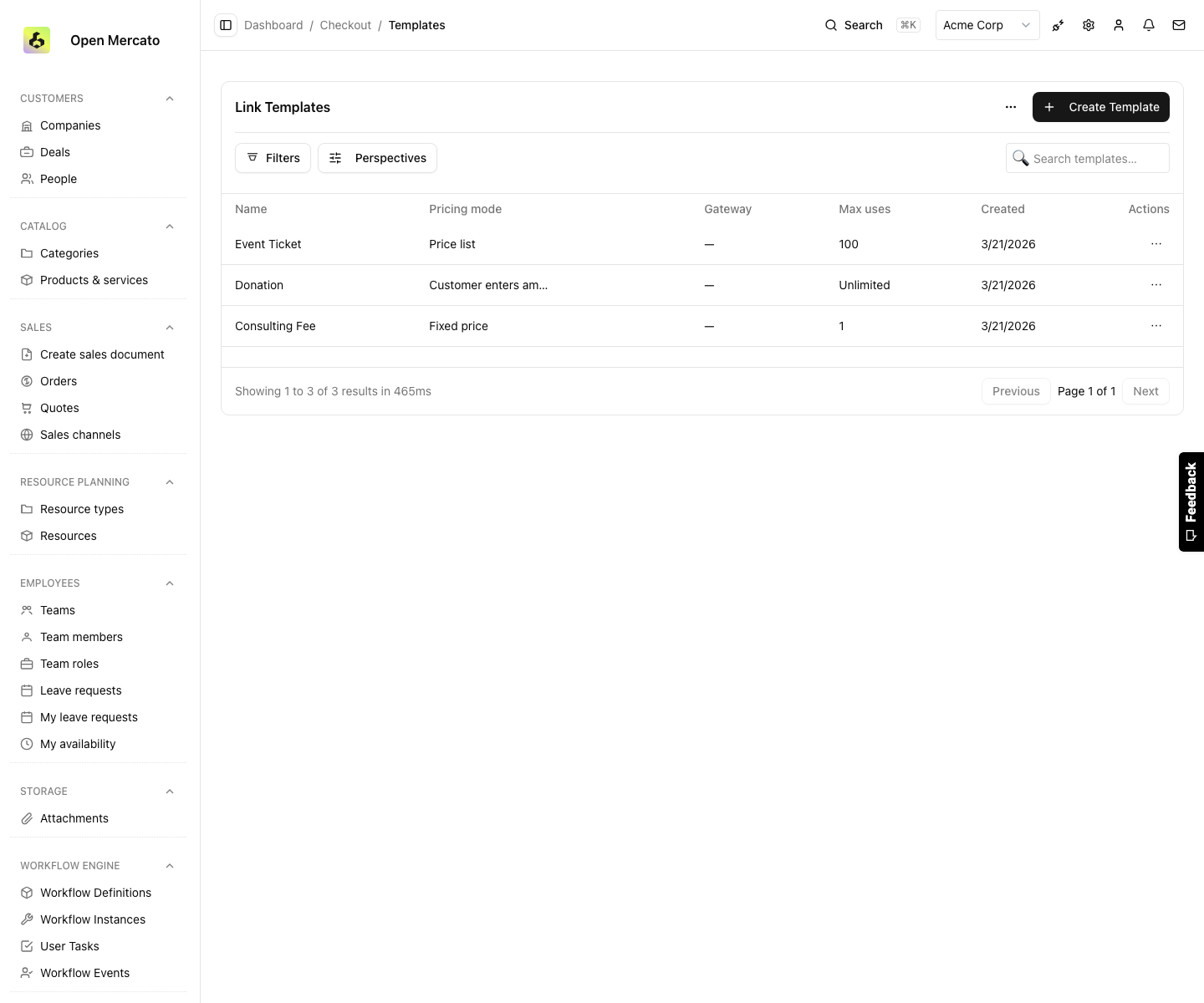
Use templates when you want to reuse:
- the same price model
- the same gateway provider
- the same public-page styling
- the same legal confirmations
- the same success or email messaging
If you only need a one-off payment page, you can skip templates and create the pay link directly.
2. Create and manage pay links
Go to Checkout → Pay Links to see every checkout link in one table. This is where operators create new links, search by slug or title, and review status or usage limits.
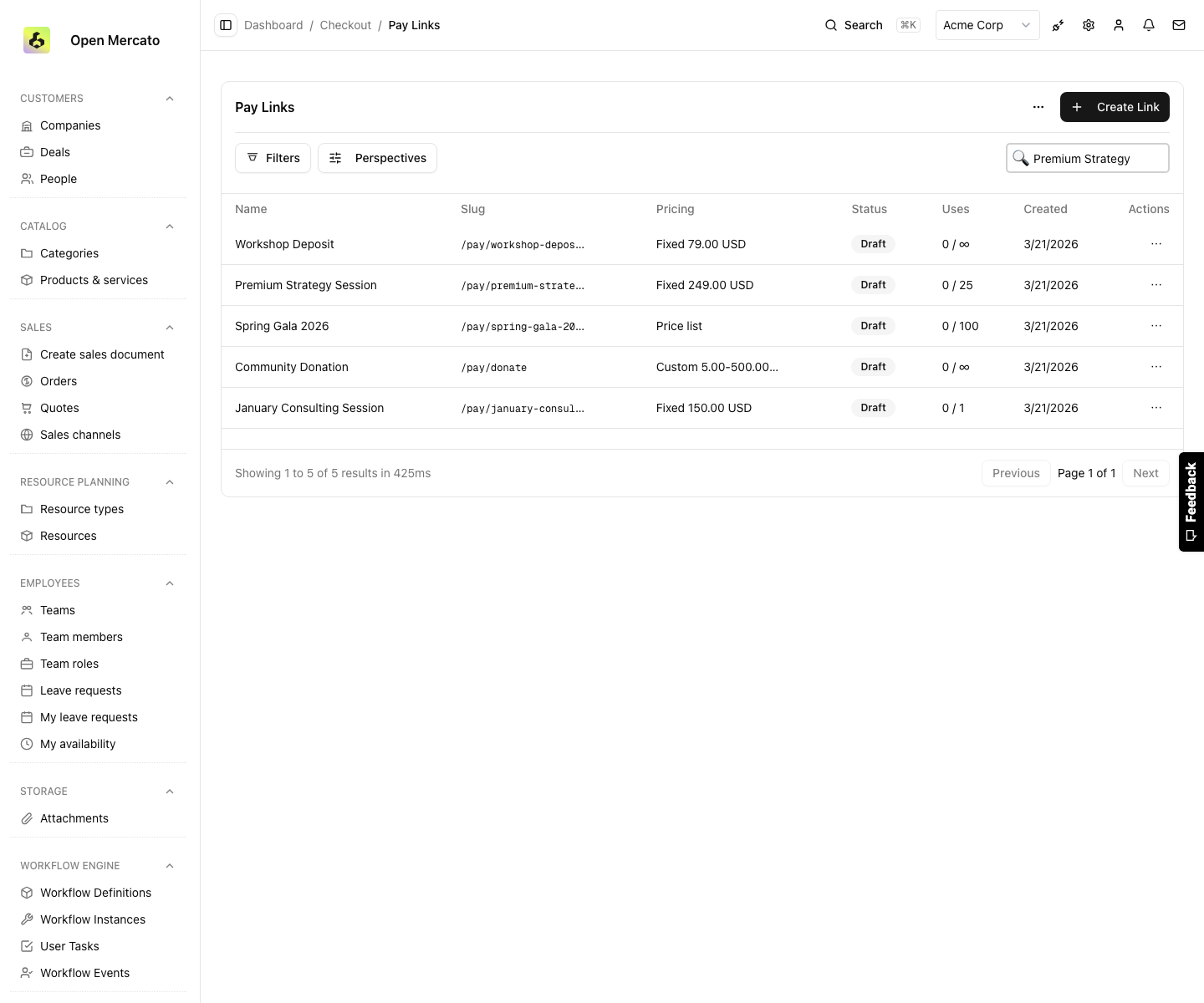
Each row shows the key operational data:
- Slug: the public URL path that customers open
- Pricing: fixed amount, custom amount, or price list
- Status: draft, active, or inactive
- Uses: completed payments versus the configured limit
Draft links stay private until you publish them.
Open any pay link to edit the full checkout configuration. The edit page is where you define both the internal setup and the public buying experience.
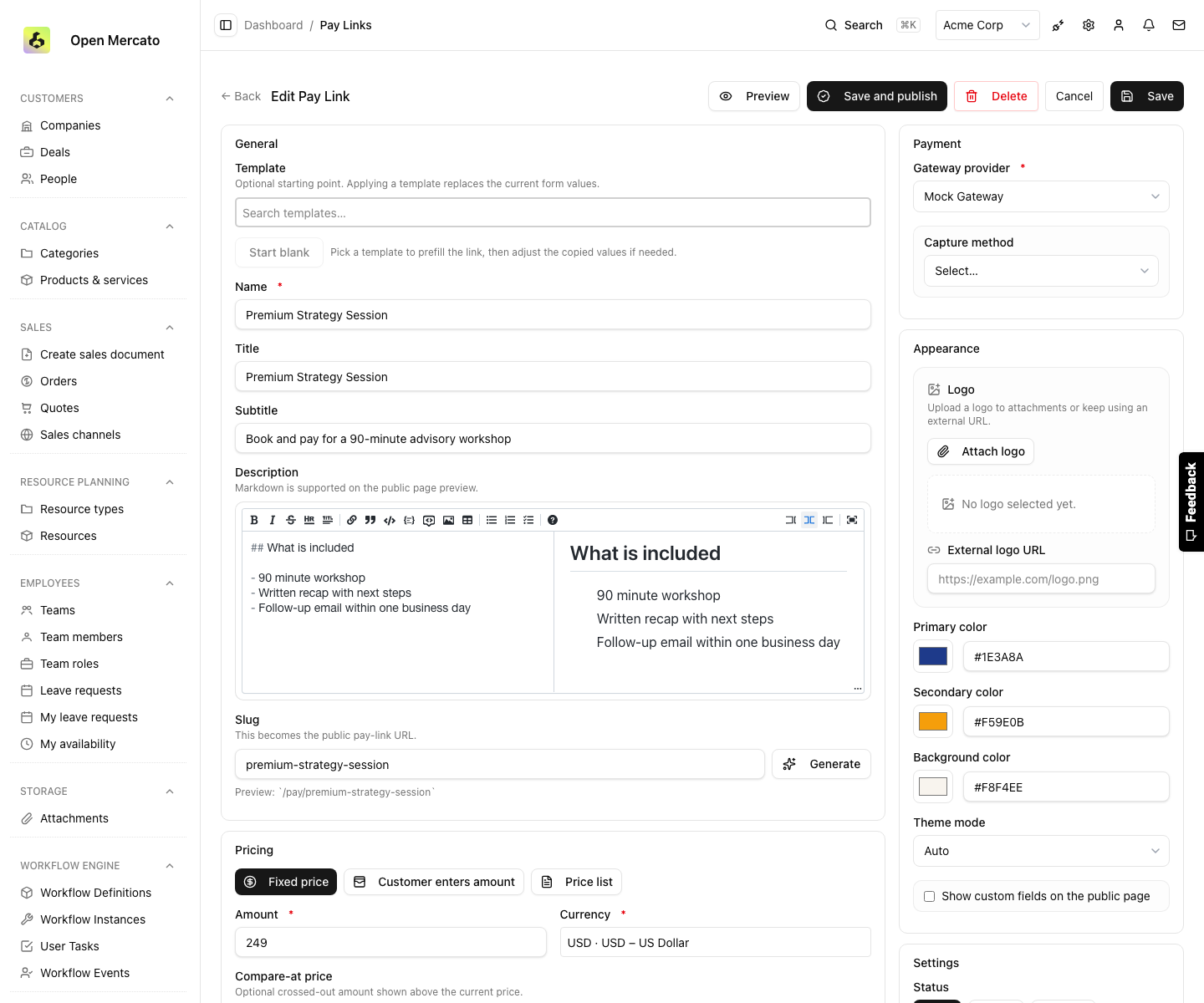
The most important sections are:
- General: link name, customer-facing title, subtitle, description, and slug
- Pricing: fixed price, customer-entered amount, or price list
- Payment: which gateway provider handles the payment
- Appearance: colors, logo, theme mode, and whether custom fields appear on the public page
- Settings: draft/active state, max completions, and optional password
Further down the form you can also configure:
- customer fields
- legal confirmations
- success, cancel, and error messages
- customer emails for started, success, and error states
4. Preview the pay page before publishing
Use Preview on the edit screen to open the pay page layout in safe preview mode. Payments are disabled there, but the visual structure and customer journey match the published version.
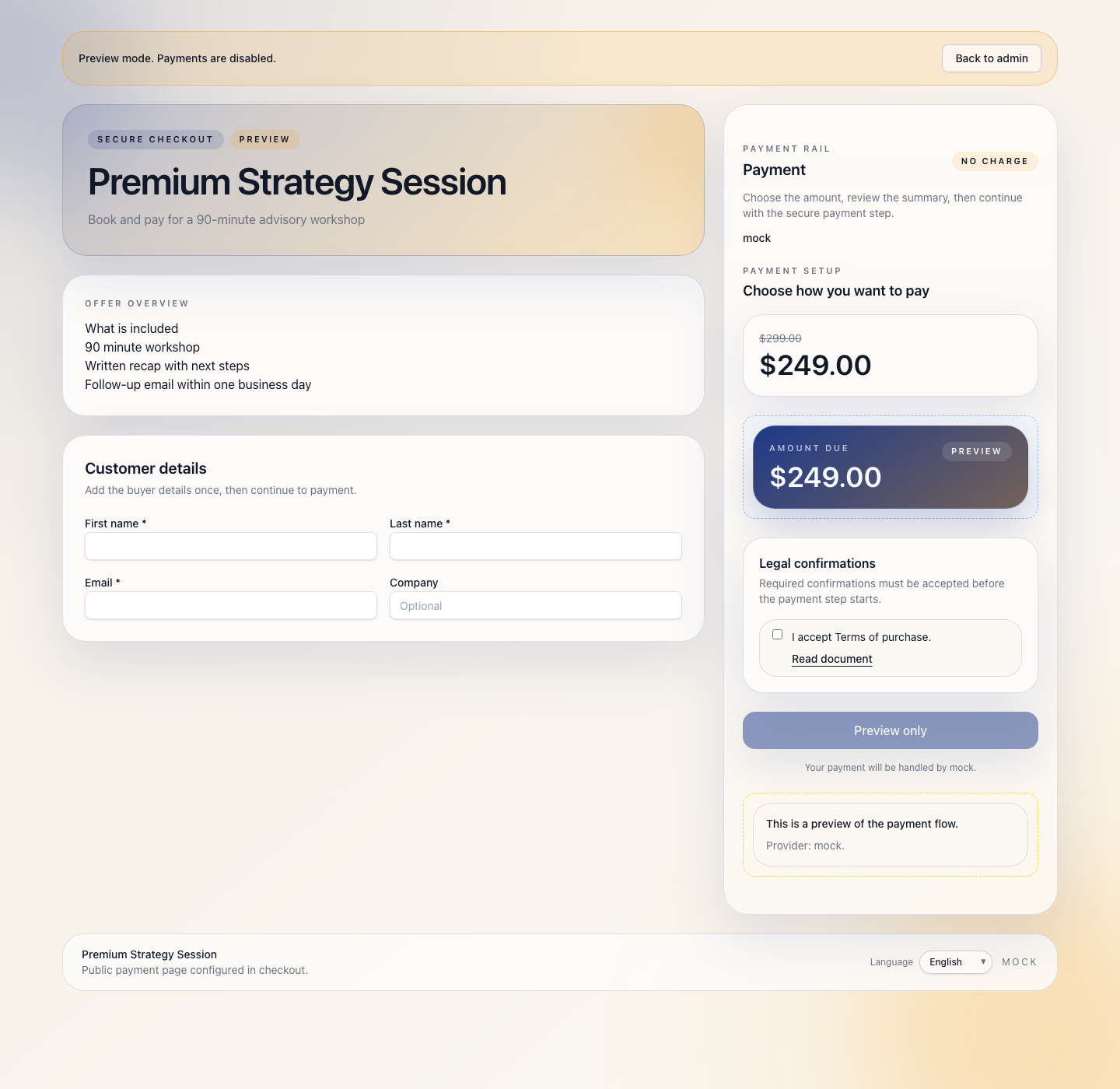
Preview is the right place to verify:
- page title and supporting copy
- pricing presentation
- customer form fields
- legal checkboxes
- overall visual polish before you share the link externally
When the page looks right, click Save and publish.
5. Share the link with customers
After publishing, customers open the public pay link, complete the form, accept required confirmations, and continue to the payment step. Depending on your configuration, the flow can also enforce:
- a password before entry
- a completion limit
- custom amount boundaries
- price-list selection rules
Keep slugs short and readable, because they become part of the public URL.
6. Track outcomes in transactions
Use Checkout → Transactions to review what happened after the link was shared. Operators can confirm whether payments completed, failed, or were cancelled, and can inspect the related gateway transaction data.
This is the main screen to use when:
- a customer says they paid but did not get confirmation
- you want to verify the gateway status
- you need to review submitted customer details
Recommended workflow
- Create a template for a recurring offer.
- Create a pay link from that template.
- Preview the page and review copy, colors, and legal text.
- Publish the link.
- Share the URL with the customer.
- Track the result in Transactions.
Built-in safeguards
Checkout includes several protections that operators should understand before publishing links:
- Only active links are publicly payable.
- Draft links can be previewed internally, but preview mode does not allow real payment processing.
- Optional password protection creates a signed access session after successful verification.
- Required legal confirmations block submit until the customer accepts them.
- Usage limits stop the link once the allowed number of successful or in-flight attempts is reached.
- Idempotency protection prevents duplicate transactions during browser retries.
- Customer PII in transactions is visible only to roles with
checkout.viewPii.
- Some payment providers need payer details (for example email and name) to create a payment. When the selected provider declares them, the Payment section shows a warning until customer details are collected with those fields marked as required, and saving the template or link is blocked. Existing links keep working, but you must fix their customer fields the next time you save them.
For the full developer-facing protection model, see the Checkout module reference.
Practical tips
- Use templates for consistency and faster setup.
- Keep links in
draft until the public page is fully reviewed.
- Use max completions for one-time invoices, deposits, or limited-capacity offers.
- Add a password when the link should stay private.
- Review the preview after every change to pricing, legal text, or customer fields.
Next steps
 DocsTopicsSearch docsAPI reference