 DocsTopicsSearch docsAPI referenceDocsTopicsSearch docsAPI reference
User guide
Enter the Stripe credentials for your test or live environment and check the connection. Keep the webhook configuration and payment sessions in that same environment.
If your deployment already knows the Stripe credentials, you can preconfigure the Stripe integration automatically instead of filling the credentials form manually after every fresh install.
Use these env vars:
OM_INTEGRATION_STRIPE_PUBLISHABLE_KEY=pk_test_...
OM_INTEGRATION_STRIPE_SECRET_KEY=sk_test_...
OM_INTEGRATION_STRIPE_WEBHOOK_SECRET="<om-integration-stripe-webhook-secret>"
OM_INTEGRATION_STRIPE_API_VERSION=2025-02-24.acacia
OM_INTEGRATION_STRIPE_ENABLED=true
OM_INTEGRATION_STRIPE_FORCE_PRECONFIGURE=false
Notes:
OM_INTEGRATION_STRIPE_API_VERSION is omitted, Open Mercato pins Stripe's default supported versionOPENMERCATO_STRIPE_* and STRIPE_* are still acceptedTo rerun the preset for an existing tenant:
yarn mercato gateway_stripe configure-from-env --tenant <tenantId> --org <organizationId>
integrations.credentials.manage and payment_gateways.manage features enabled for your role.| Field | Where to find it | Example prefix |
|---|---|---|
| Publishable Key | API keys page – copy the publishable key for the mode (test or live) you want to use | pk_test_... or pk_live_... |
| Secret Key | API keys page – reveal or rotate the secret key for the same mode | sk_test_... or sk_live_... |
| Webhook Signing Secret | Webhooks page – the endpoint signing secret (see Step 4) | whsec_... |
Caution
Use keys from the same mode – do not mix test publishable keys with live secret keys. Stripe will reject cross-mode requests.
Switch to the Health tab and click Run Check.

A Healthy result confirms Open Mercato can reach the Stripe API with your credentials. The details panel shows your Stripe account ID, country, business type, and whether charges and payouts are enabled.
If the check fails, double-check the secret key and ensure it matches the mode of the publishable key.
Open Mercato ships with a built-in demo page for testing the full payment lifecycle without writing code. Navigate to the Payment Gateway Demo page (available in the example module).
Click Pay with Stripe. The demo creates a payment session through the hub, then uses Stripe.js to confirm the card payment with the test card 4242 4242 4242 4242.
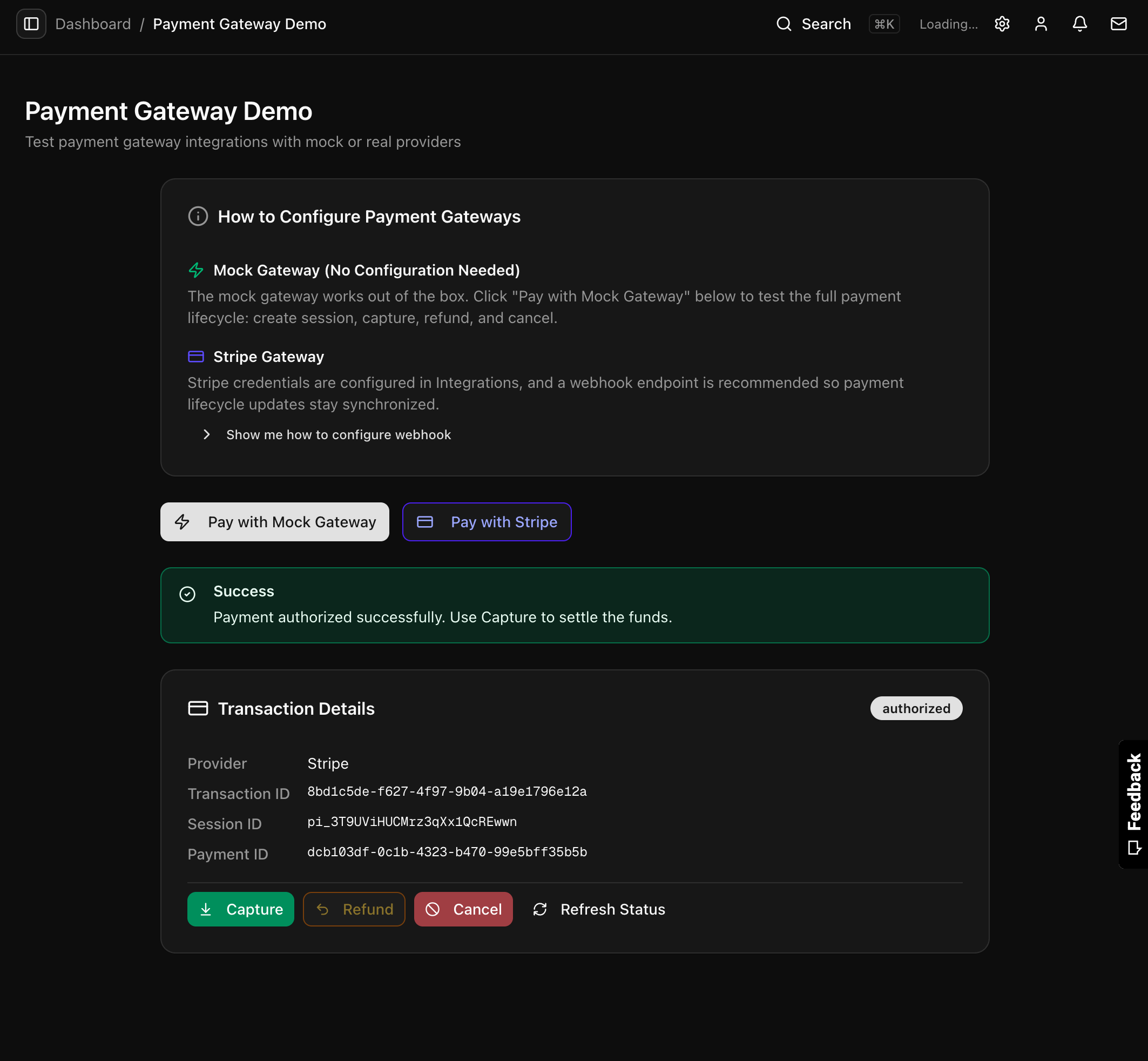
On success you will see:
From the Transaction Details card:
captured.refunded.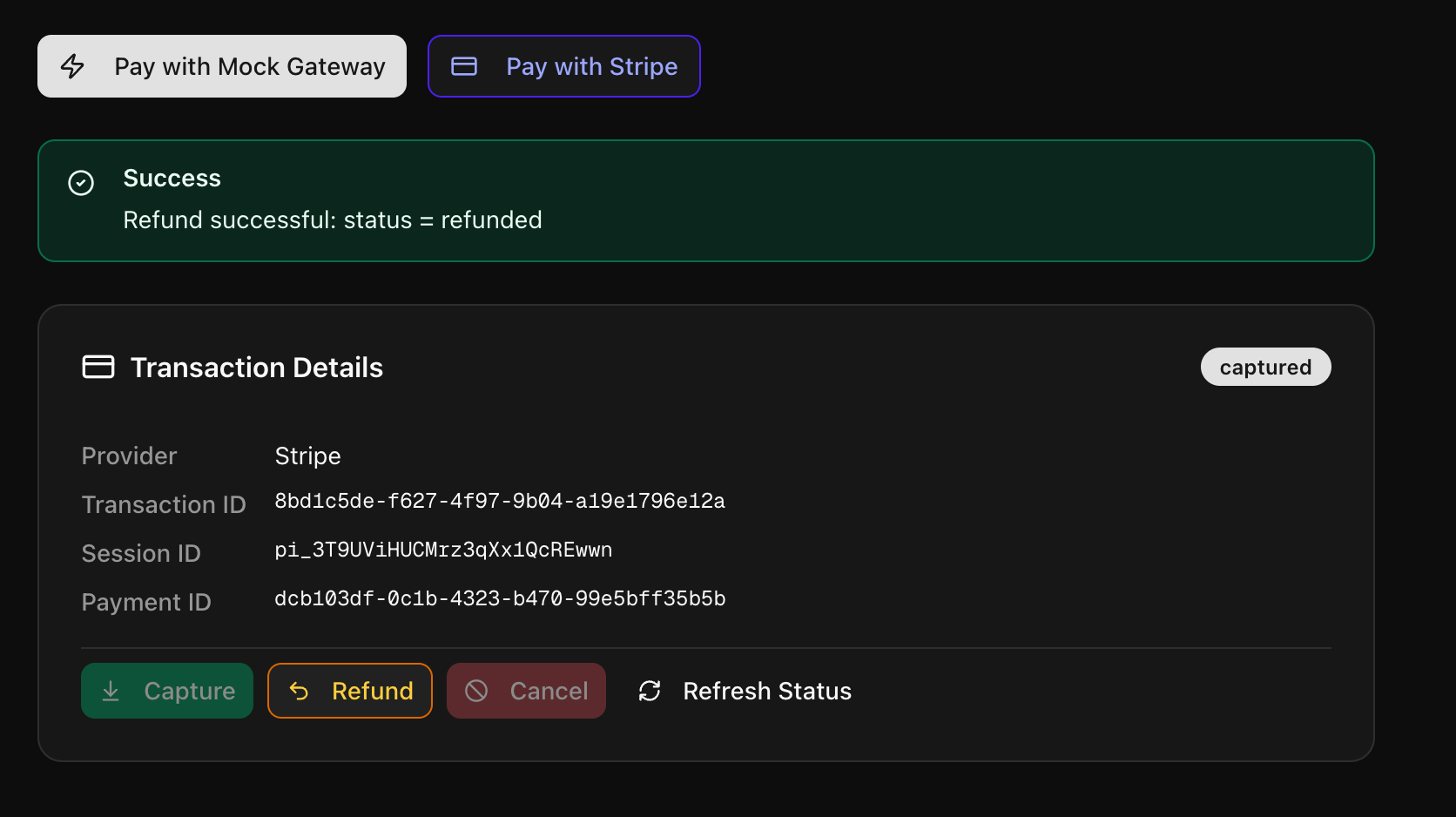
Each action calls the corresponding Payment Gateway API endpoint under the hood.
After running the demo, open Stripe Dashboard → Payments. You should see the matching transaction with the same amount and status:
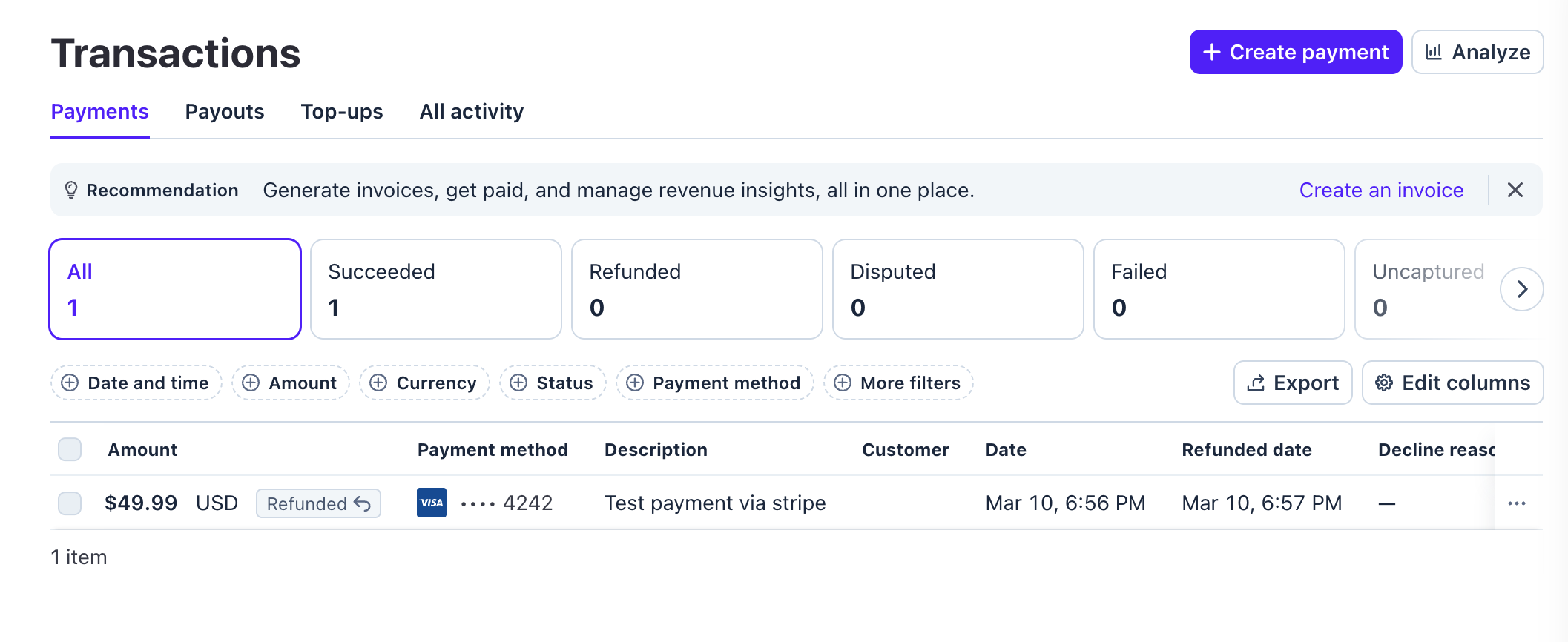
The description field references the Open Mercato origin, making it easy to cross-reference.
Webhooks allow Stripe to push status updates (captures, refunds) and dispute notifications to Open Mercato in real time, instead of relying on polling. This is strongly recommended for production.
https://YOUR_APP_URL/api/payment_gateways/webhook/stripe
payment_intent.succeeded
payment_intent.payment_failed
payment_intent.canceled
payment_intent.requires_action
charge.refunded
charge.refund.updated
charge.dispute.created
charge.dispute.closed
A refund issued outside Open Mercato (for example from the Stripe dashboard) arrives as charge.refunded. When the charge shows refunded captured funds, a captured or partially captured gateway transaction moves to partially_refunded or refunded, depending on whether the charge is fully refunded, and a partially refunded one moves to refunded once everything captured is refunded. A refund that reaches Open Mercato before the payment's capture notification is still recorded. charge.refund.updated and the dispute events are received and recorded in the integration log; they do not change the transaction's unified status.
whsec_).Stripe cannot reach localhost directly. Use a tunnel:
ngrok http 3000
Then set the webhook endpoint URL in Stripe to:
https://YOUR-NGROK-SUBDOMAIN.ngrok-free.app/api/payment_gateways/webhook/stripe
Remember to update the signing secret in Open Mercato whenever you recreate the Stripe webhook endpoint.
After running payments, check the Logs tab on the Stripe integration page to see a full audit trail:
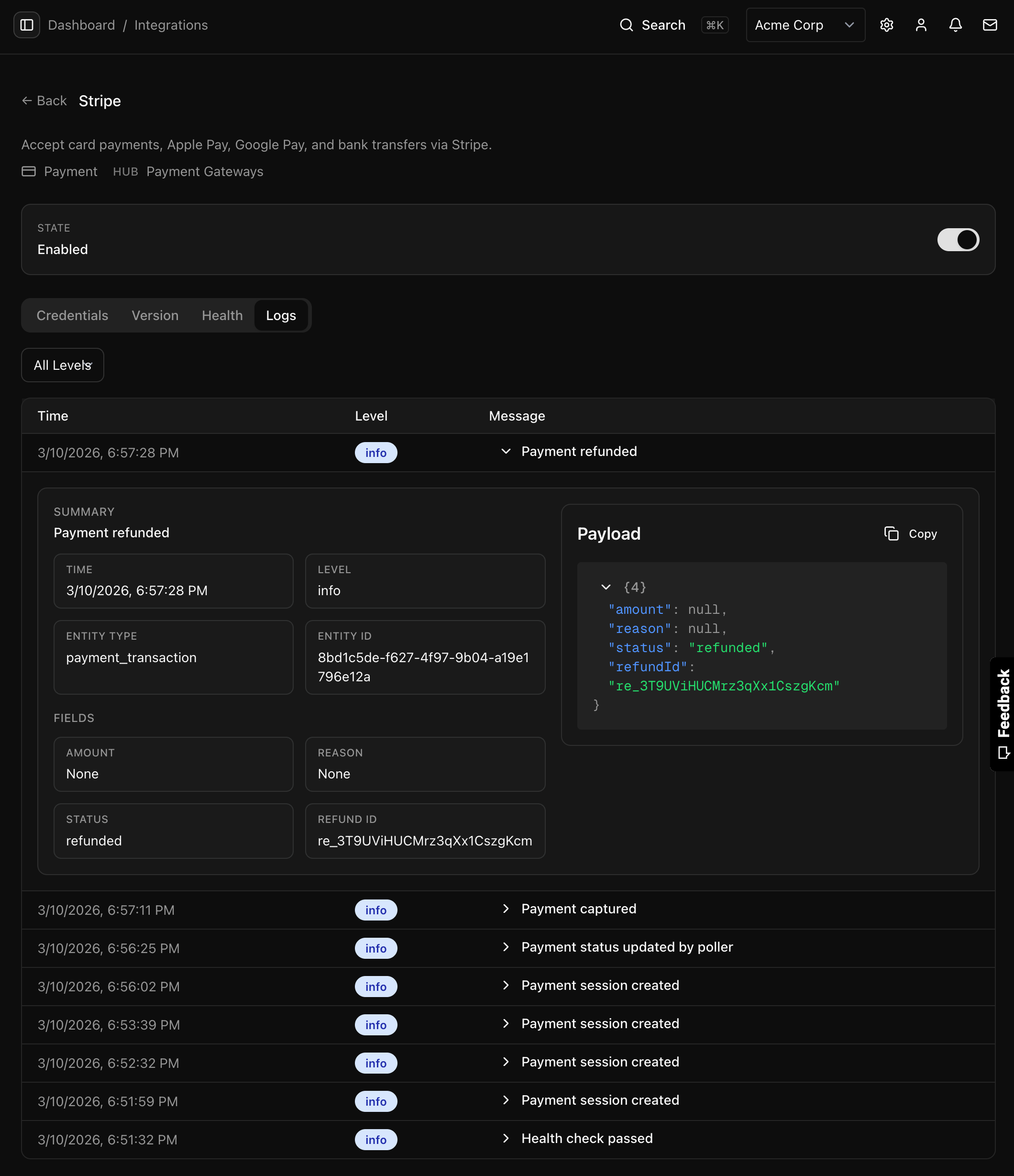
Each log entry records the operation (session created, status updated, payment captured, payment refunded), the entity type and ID, and a structured payload you can copy for debugging.
For building custom checkout flows, headless storefronts, or server-to-server integrations, see the Payment Gateways REST API reference. It covers:
POST /payment_gateways/sessions)clientSecret and publishableKeyPrevious: Storage Hub — S3 Integration · Next: System status