User guide
Login & authentication
Sign in to the instance your administrator provided. If the expected workspace is missing after sign-in, check the selected organization and the access assigned to your account.
Logging in is the first touchpoint for every operator. The authentication flow respects the tenant and organization model, ensuring users only see what they are allowed to manage.
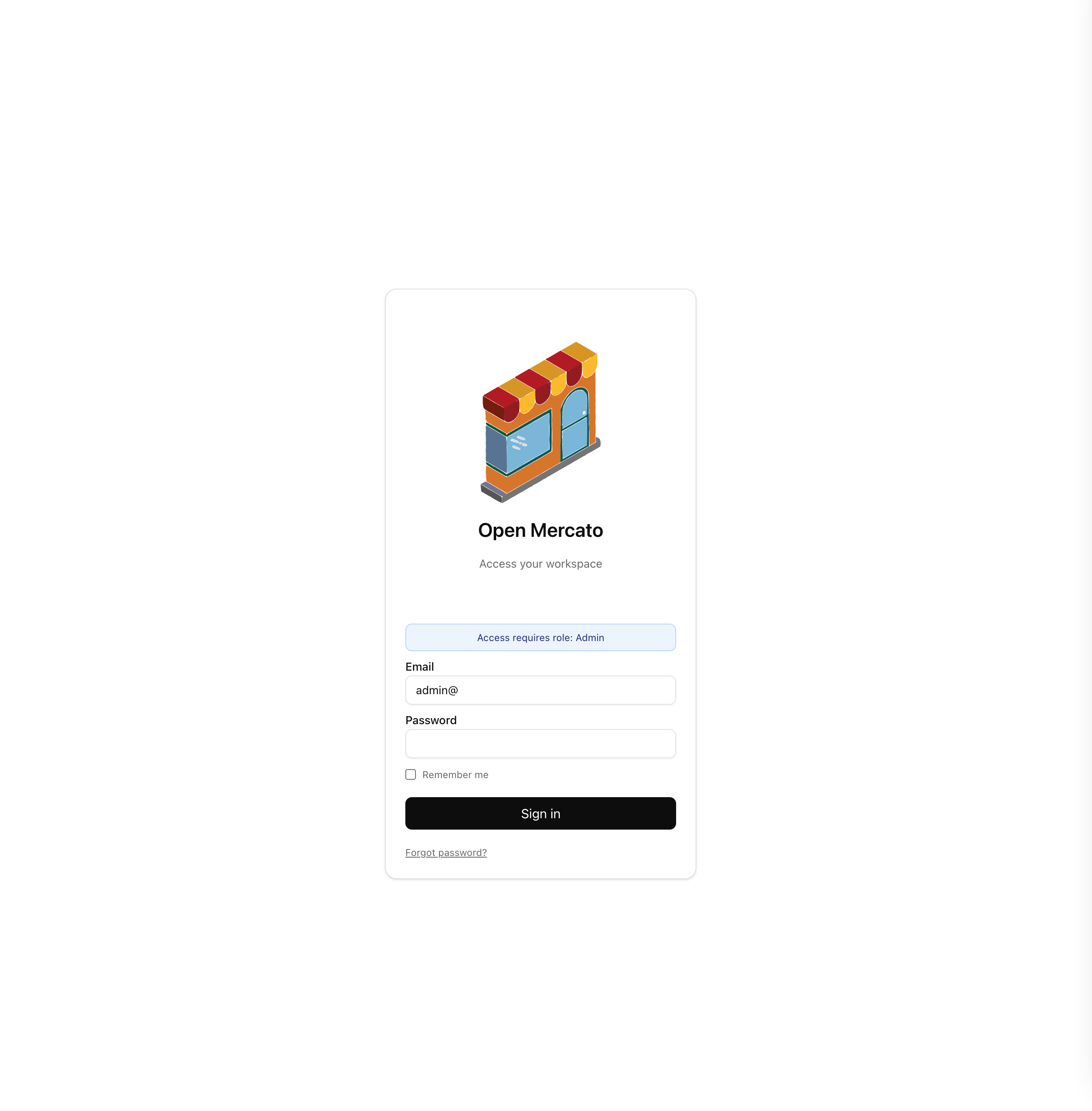
Sign-in experience
- Email & password – standard credentials validated against the tenant's directory. Password policies are configured via environment variables (see the System status variables guide).
- Organization context – after signing in, users see the organizations they are allowed to operate. Selecting one sets both organization and tenant scopes for the session.
- Remember me – sessions persist according to the environment configuration (JWT expiration + refresh tokens).
Landing on the dashboard
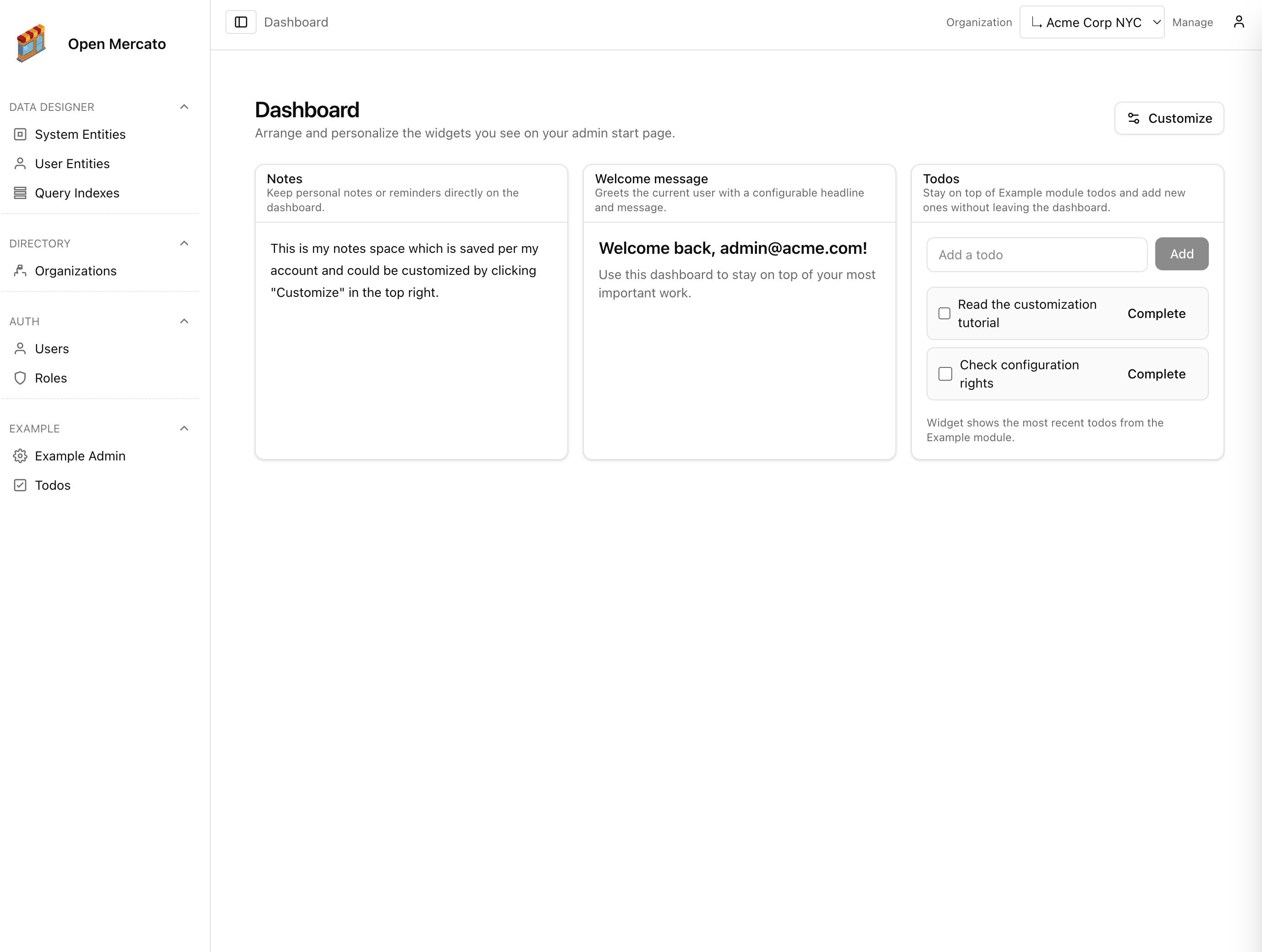
- Modular widgets – the dashboard tiles surface health checks, user onboarding status, recent activity, and any module-provided cards that were enabled for the tenant.
- Role defaults – configure which system health widgets appear after login from the Users & roles management pages; each role can opt into the tiles that matter most.
- Per-user overrides – individual preferences live in the same management screens, letting you fine-tune the widget set for specific team members when roles are not enough.
Resetting access
- Administrators can trigger password resets via the Users module.
- Users can request a reset link if you enable the optional password recovery module (see
packages/core/src/modules/auth).
Next steps
 DocsTopicsSearch docsAPI reference