User guide
Users, roles, and RBAC
Give a user the roles they need for their work. Review both the features a role grants and the organizations the user can reach.
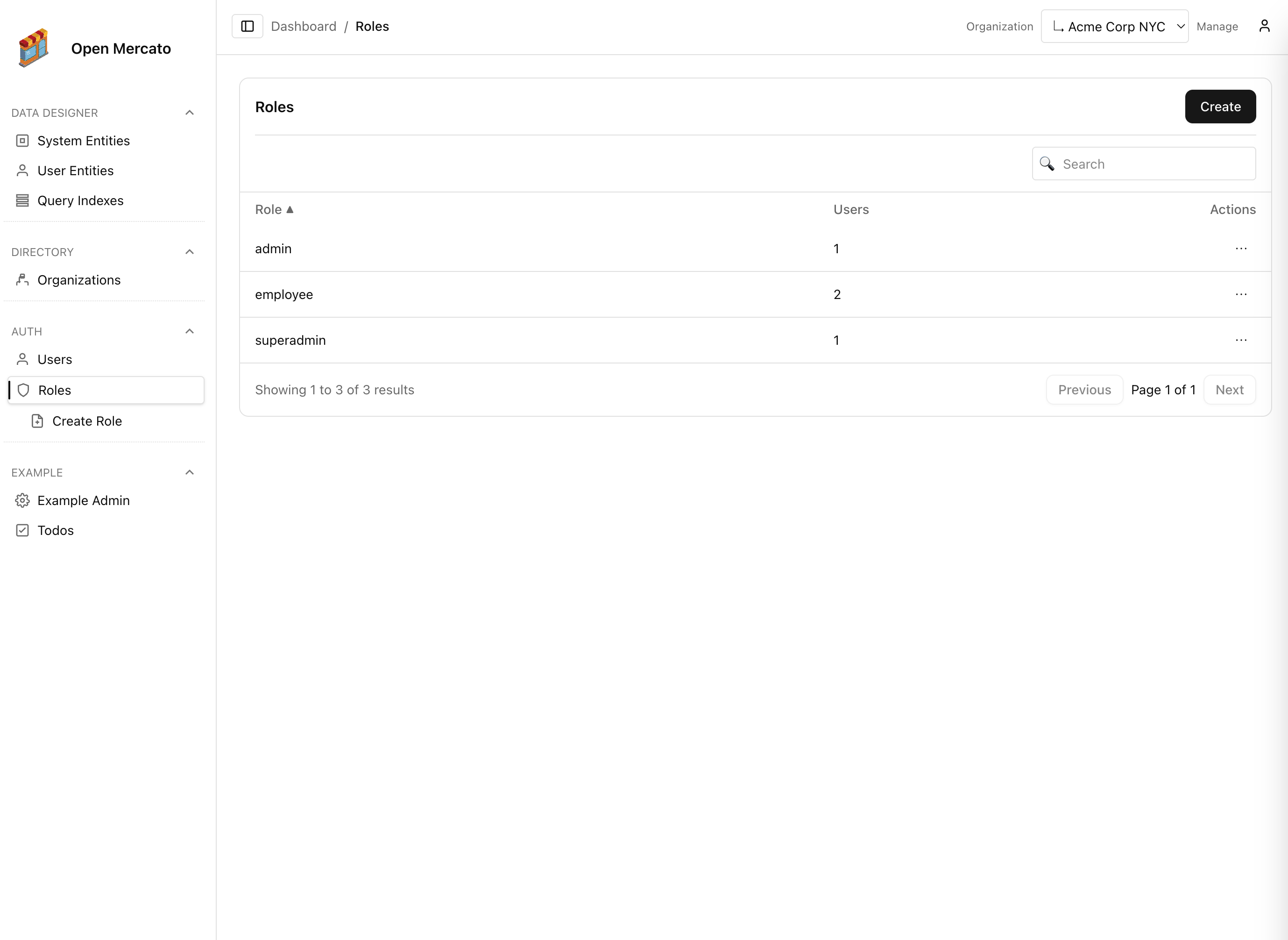
Manage role catalogs
- Navigate to Auth → Roles to review every role in the active tenant. New installations seed
admin and superadmin roles with broad access, including organization management and dashboard visibility.
- Inspect role details to see the features that role grants. Features follow the
<module>.<action> convention and mirror each module’s acl.ts. Toggle features to grant or revoke access without touching code.
- Set dashboard defaults per role so operators land on the right system health widgets. These defaults drive the cards shown immediately after login.
- Save changes to persist them for the current tenant. Role edits never affect other tenants because each tenant maintains its own ACL matrix.
Assign user access
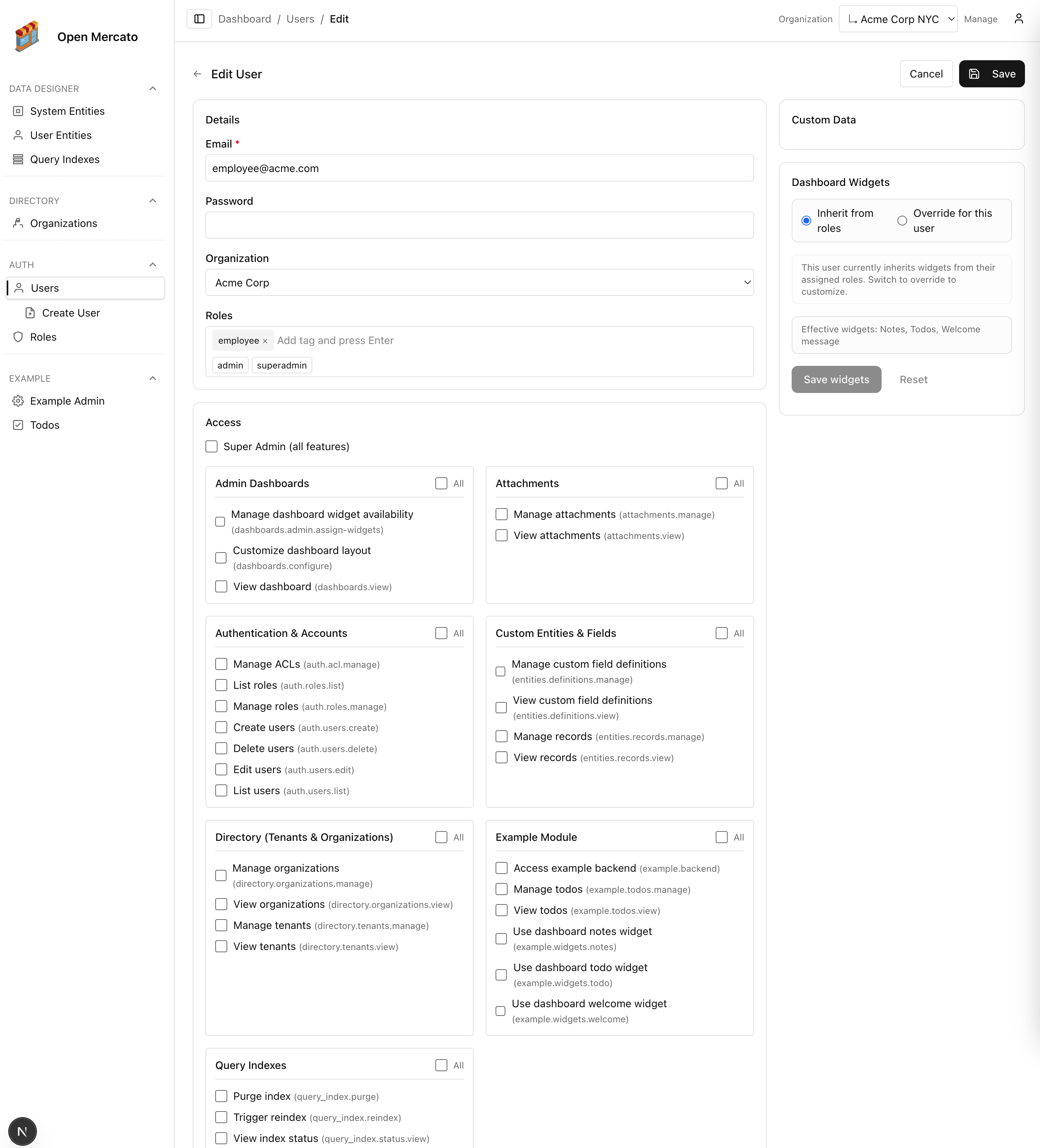
- Open Auth → Users to invite new operators or adjust identities. For non-superadmins,
auth.users.list grants visibility of staff identities across the current tenant, excluding superadmin accounts. Selecting an organization in the topbar does not automatically narrow this list; use the Organization filter to narrow it.
- Select a user to edit their profile, assign roles, and apply per-user feature overrides. Overrides are additive – you can grant temporary features without cloning roles.
- Control dashboard widgets for individuals when you need tailored visibility. Per-user settings override the role defaults configured above.
- Reset access directly from this screen when operators forget credentials or need a password rotation.
Staff directory visibility is separate from access to organization-owned records. A non-superadmin's organization visibility list does not restrict the default staff directory, so grant auth.users.list only to operators who should see identities throughout their tenant. API consumers can request an exact active-organization filter with scopeToActiveOrganization=1; this is an optional list filter, not an authorization boundary. See the user-list API reference for details.
Review and audit access
- Feature search helps confirm which roles expose sensitive functions like
directory.organizations.manage or module-specific create/edit permissions.
- Organization scope is shown on every edit page so you know which branches a user can enter. Combine role features with organization visibility lists for fine-grained control.
- Keep records fresh by deactivating accounts instead of deleting them. Soft-deleted users retain audit history while preventing new sign-ins.
Next steps
 DocsTopicsSearch docsAPI reference